Skip to main contenteBay Playbook
  • Get started
  • Foundations
  • Design system
  • Expressions
  • Resources
  • Articles

Design system

  • Overview
    • Overview
    • Color
    • Dimension
    • Spacing
    • Typography
    • Breakpoints
    • Shadow
    • Shape
    • Opacity
    • Motion
    • Overview
    • Status
    • Accordion
    • Action bar
      • Overview
      • Inline notice
      • Page notice
      • Section notice
    • Avatar
    • Badge
    • Banner
    • Breadcrumb
      • Overview
      • Branded button
      • CTA button
      • Icon button
      • Link button
    • Card
    • Carousel
    • CCD
      • Filter chip
      • Input chip
      • Graphs
      • Metrics
    • Date picker
    • Dialog
    • Divider
    • Education notice
    • EEK rating and range
    • Expansion
      • Checkbox
      • Combobox
      • Dropdown
      • Numeric stepper
      • Password
      • Phone number
      • Radio button
      • Select list
      • Switch
      • Text area
      • Text field
    • Item tile
    • List row
      • Overview
      • Expressive loader
      • Skeleton loader
    • Media container
      • Top navigation bar
    • Pagination
    • Popover
    • Progress stepper
    • Search field
    • Section header
    • Segmented button
      • Bottom sheet
      • Panel
    • Signal
    • Snackbar
    • Tab
    • Table
      • Tooltip
      • Tourtip
    • Toggle button group
    • Video player
    • Overview
    • Bulk editing
    • File uploading
      • Text link

Top navigation bar

v2.0

The navigation bar displays common navigation, a global search bar, page titles, and page-level actions.

  • CSS
  • Marko
  • React
Top navigation barv2.0

On this page

  • Anatomy
  • Properties
  • Behavior
  • Responsive layout
  • Best practices
  • Specs

Anatomy

Properties

Behavior

Responsive layout

Best practices

Specs

PreviousMedia container
Things.People.Love.
  • Get started
  • Foundations
  • Design system
  • Expressions
  • Resources
  • Articles
  • Careers
  • Press
  • Privacy policy
© 2026 eBay. All rights reserved.

eBay Evo, the eBay trademark, and the eBay logo are the intellectual property of eBay Inc.

    Container

    The container bounds the primary and secondary toolbars and automatically handles the devices safe zones.

    Title

    The title is available in the primary toolbar and should succinctly describe the page’s purpose. If the title isn’t visible, an accessible title must be provided for screen readers.

    Layout

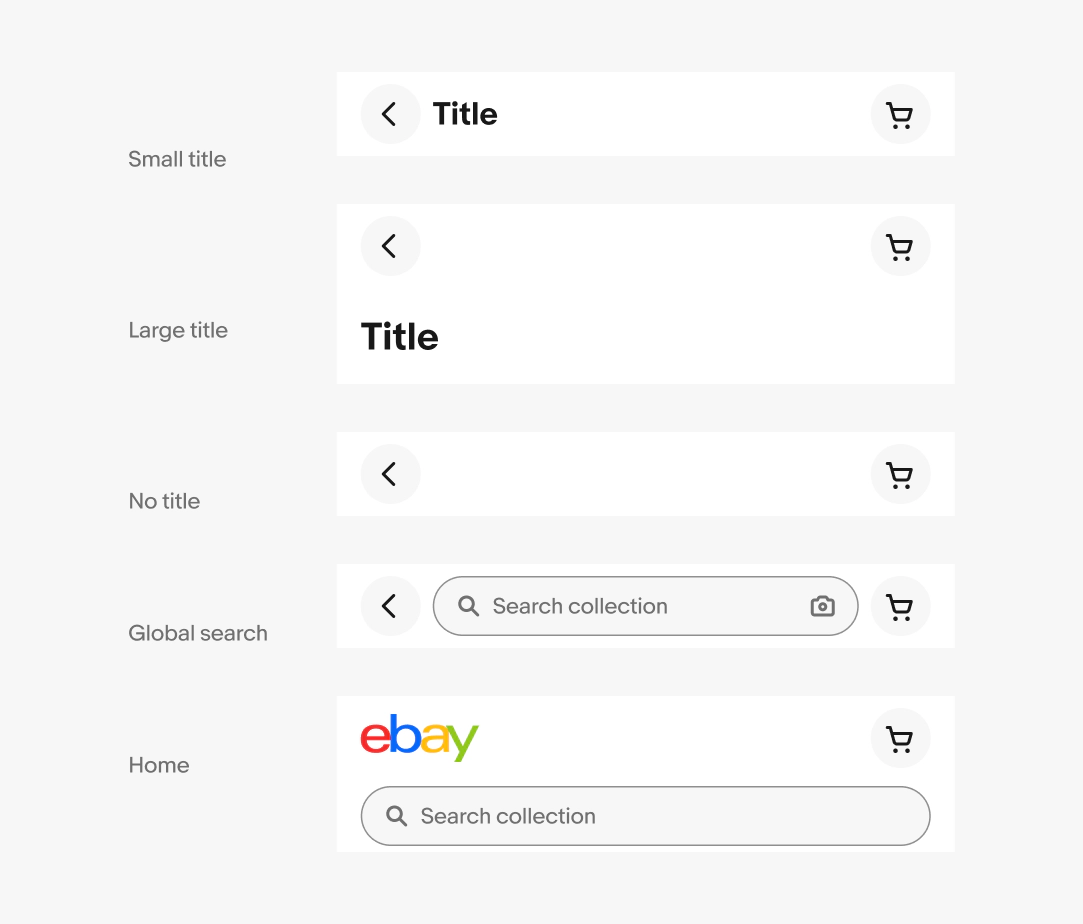
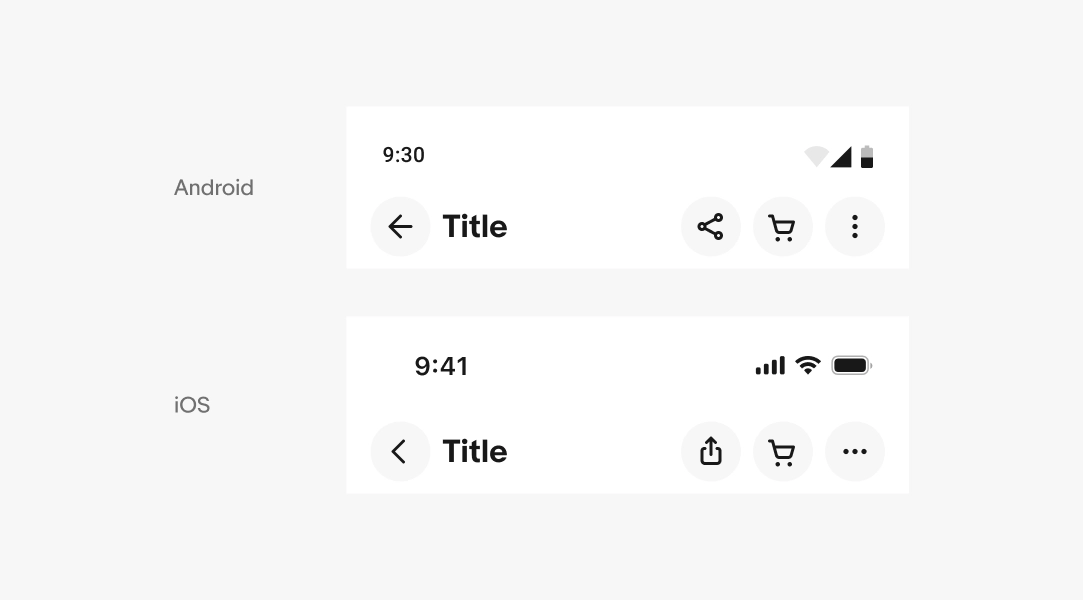
    The top navigation bar is available in multiple layouts.
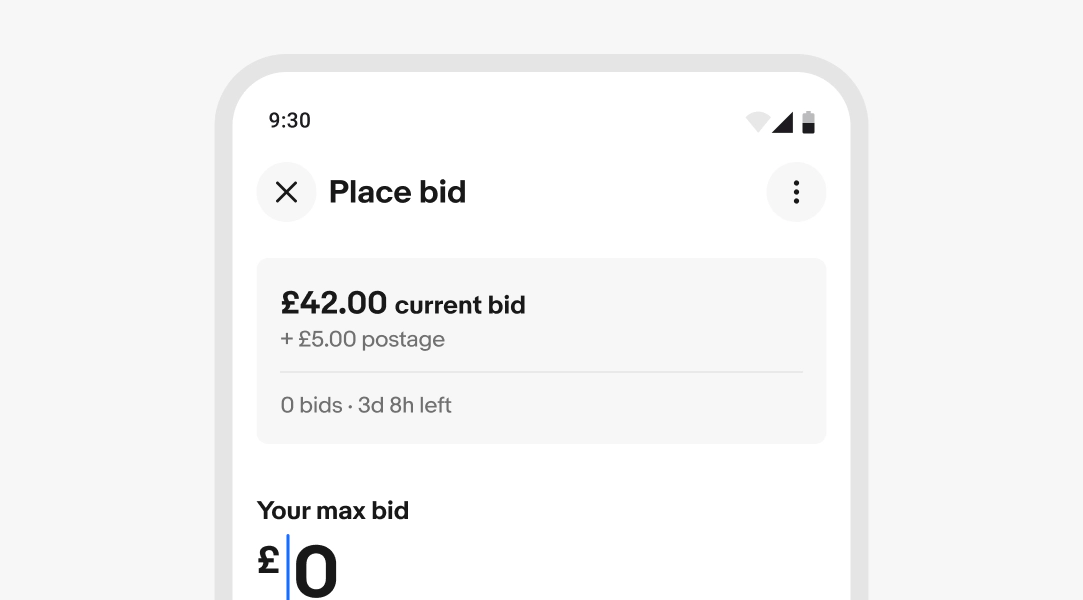
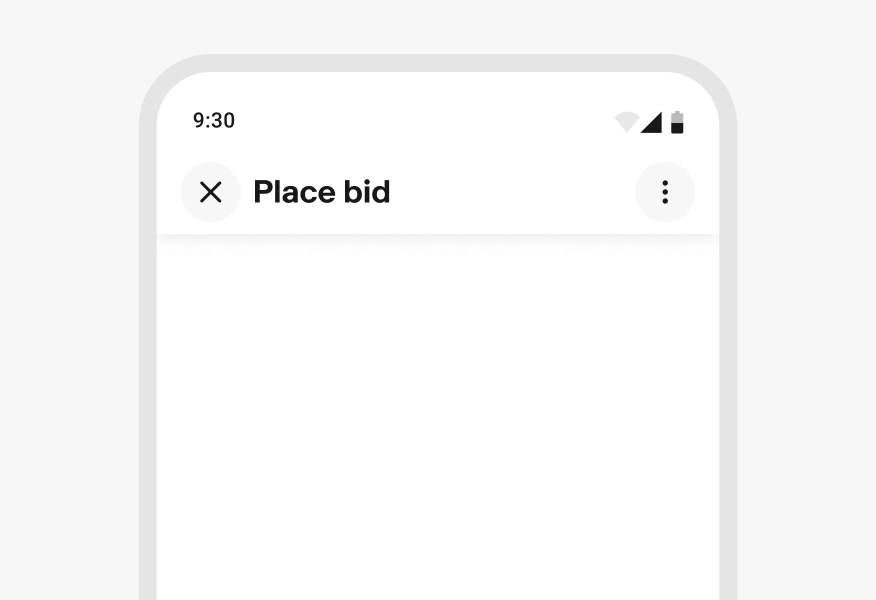
    Inline: the default layout with the title inline between the navigation buttons.
    Stacked: for larger titles and expressive moments.
    No title: For detail views where a title on the page acts as the page title.
    Search only: For search views and search results pages.

    Leading buttons

    The leading button area of the primary toolbar contains the back button when viewing subpages and detail views.

    Trailing buttons

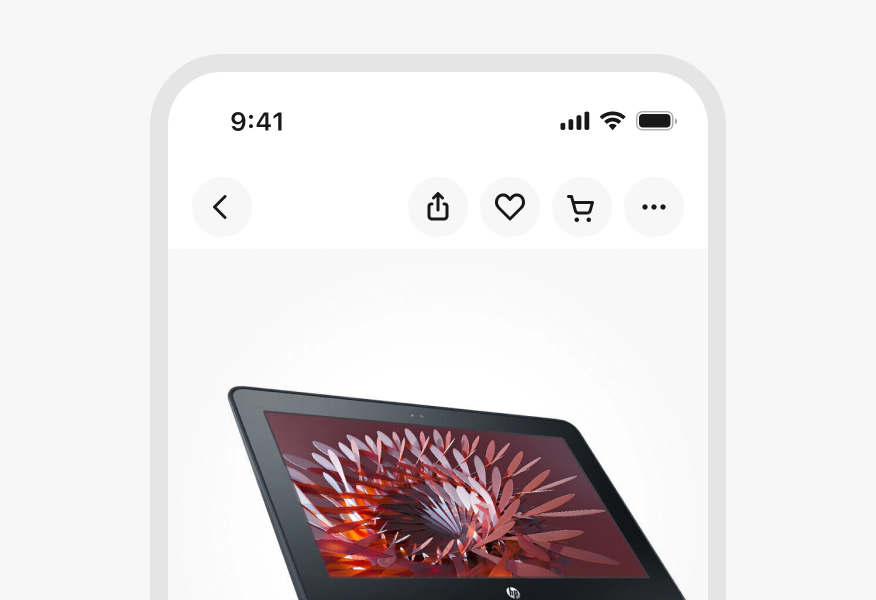
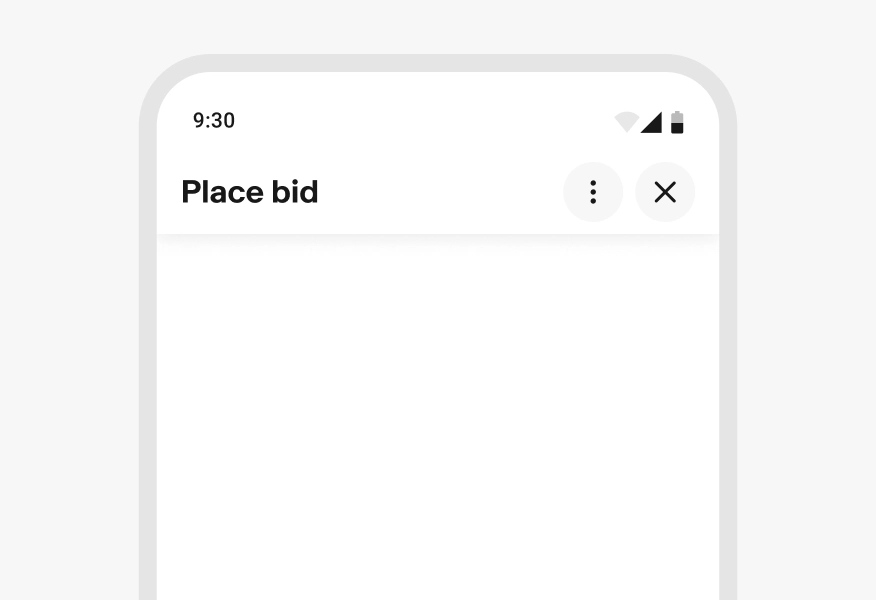
    Up to 3 trailing buttons can be visible in the primary toolbar. Additional buttons are collapsed into an overflow menu.

    Secondary toolbar

    A secondary toolbar can be stacked below the primary toolbar. By default, the secondary toolbar hides and reveals with the primary toolbar when set to hide on scroll. However, the secondary toolbar can remain visible on scroll when providing convenient page navigation controls.

    The secondary toolbar can include tabs, chips, a segmented button, a search field, or other related navigation elements.

    Title overflow

    Titles are truncated in the default title layout when wider than the available space. Stacked titles are truncated at two lines.

    Button overflow

    When there are more than 3 actions in the primary toolbar, the lower-priority actions are collapsed into an overflow menu. The overflow button is always on the trailing edge of the primary toolbar.

    Cart button

    The cart button is the last button of the primary toolbar unless an overflow button is present. Only remove the cart button in focused flows or form pages.

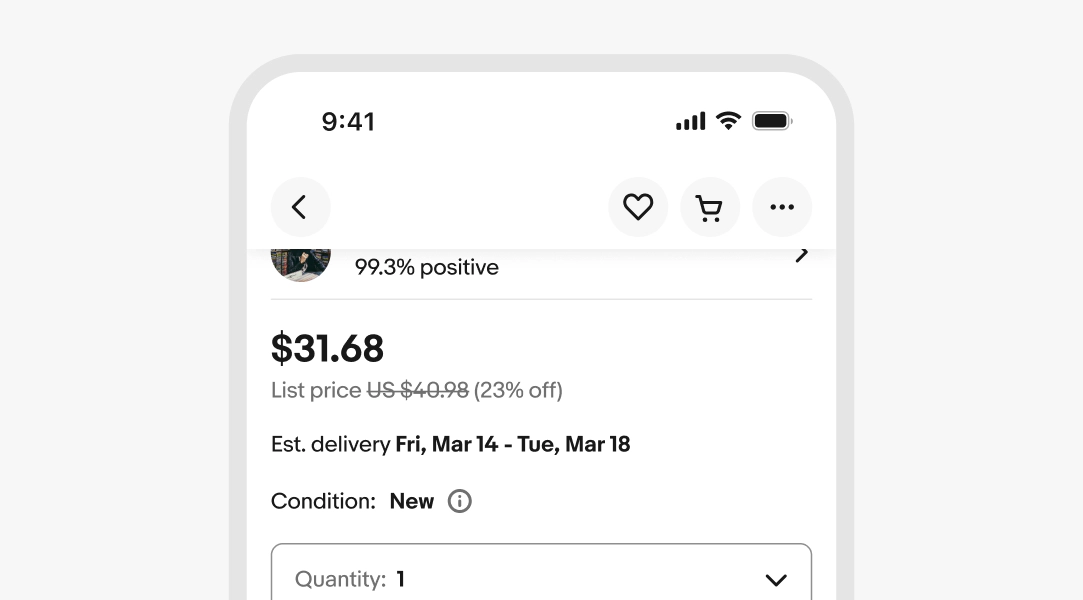
    Hide on scroll

    The top navigation bar hides when scrolling downward and reveals when scrolling upward to maximize visible screen space.

    If a secondary toolbar is present, it hides and reveals along with the primary toolbar by default, but can be configured to remain visible.

    Scrolled state

    A drop shadow is applied to the top navigation bar when the page is scrolled. For the large navigation bar, the title collapses into the smaller layout when scrolled. It transitions back to the large layout when the page is scrolled to the top.

    Small screens

    The inline title configuration is the default on smaller screens. Small screens can use the larger layout when a page title is larger.

    Medium screens

    The inline title with a larger font size is the default configuration on medium screens. Elements that would normally stack on smaller screens can move into the primary toolbar as space allows.

    If a navigation rail is present, the navigation bar will stack below the rail.

    Large screens

    The inline title with a larger font size is the default configuration on large screens. Elements that would normally stack on smaller screens can move into the primary toolbar as space allows.

    If a navigation rail is present, the navigation bar will stack below the rail.

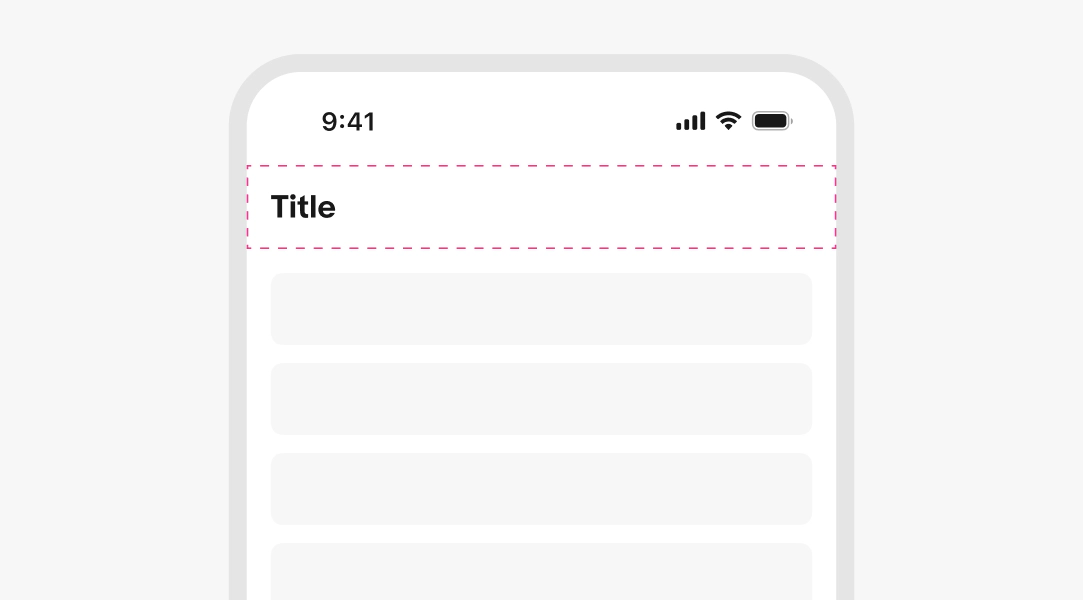
    "A stylized mobile screen with a top navigation bar titled “address” with a dotted pink outline."
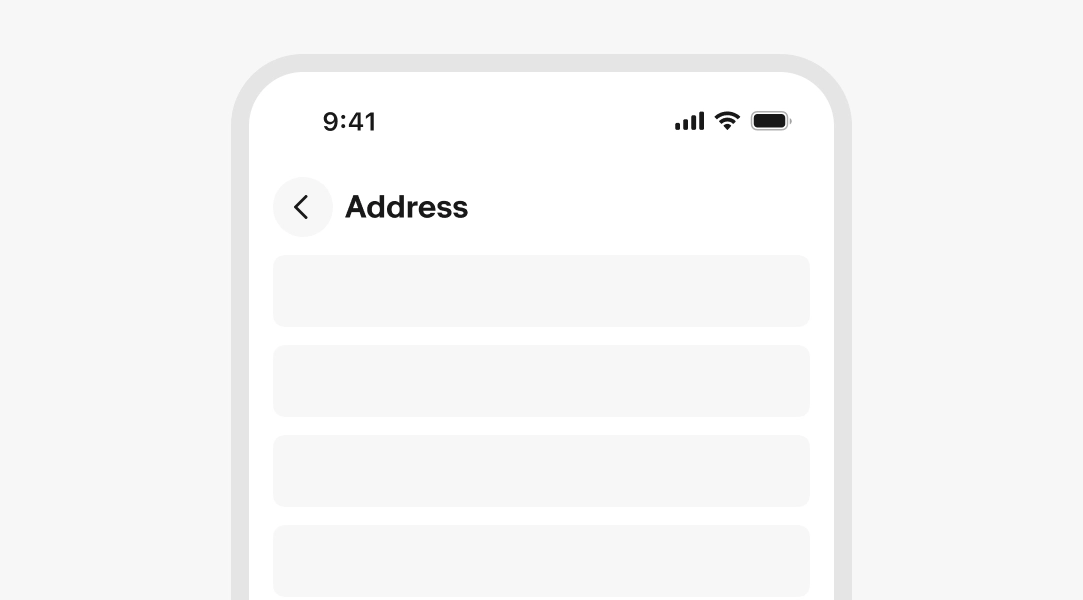
    "A stylized mobile screen with a top navigation bar titled “address”."
    "Four unique layouts of top navigation."
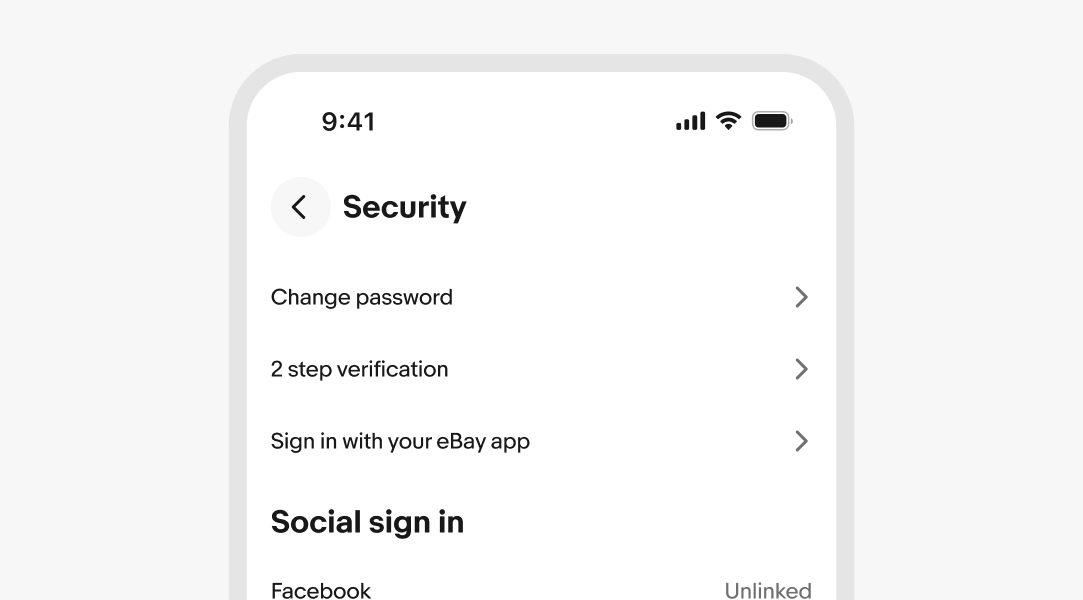
    "A stylized mobile screen with a top navigation bar titled “Security” and security content."
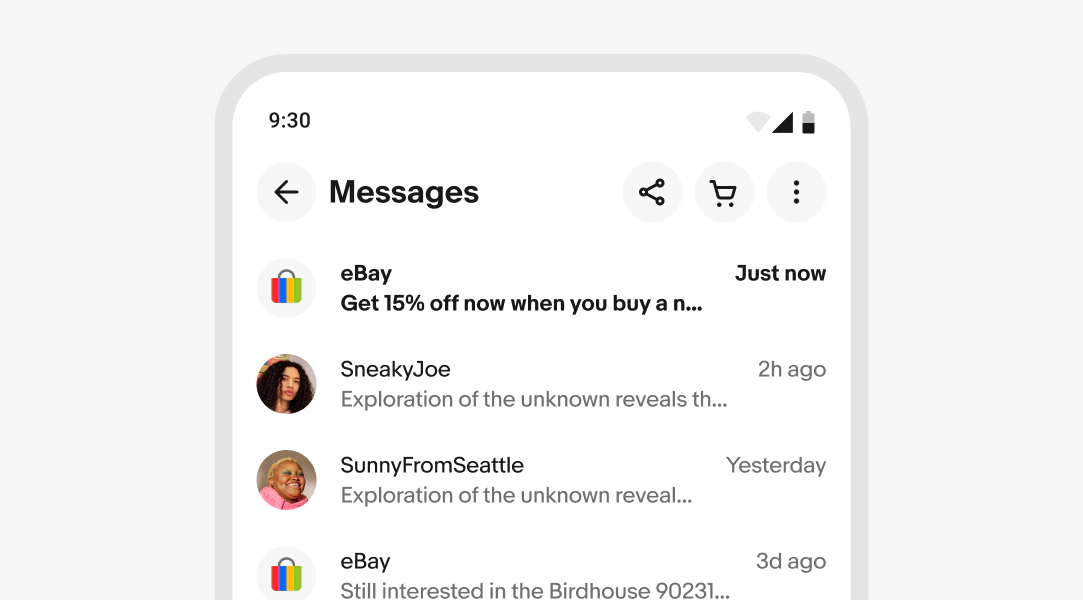
    A stylized mobile screen with a top navigation bar titled “messages” with a list of messages.
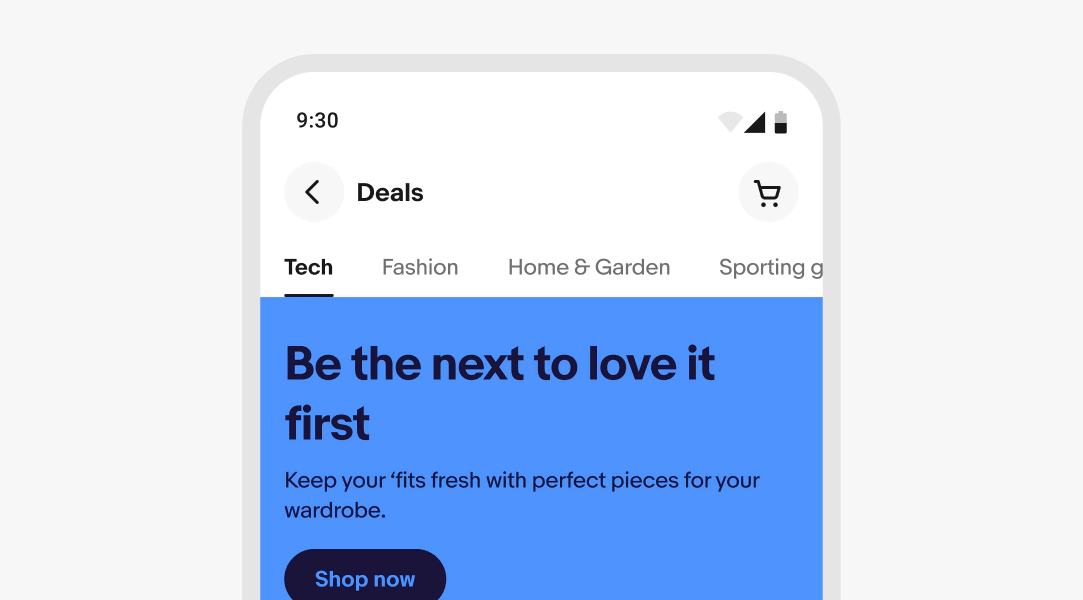
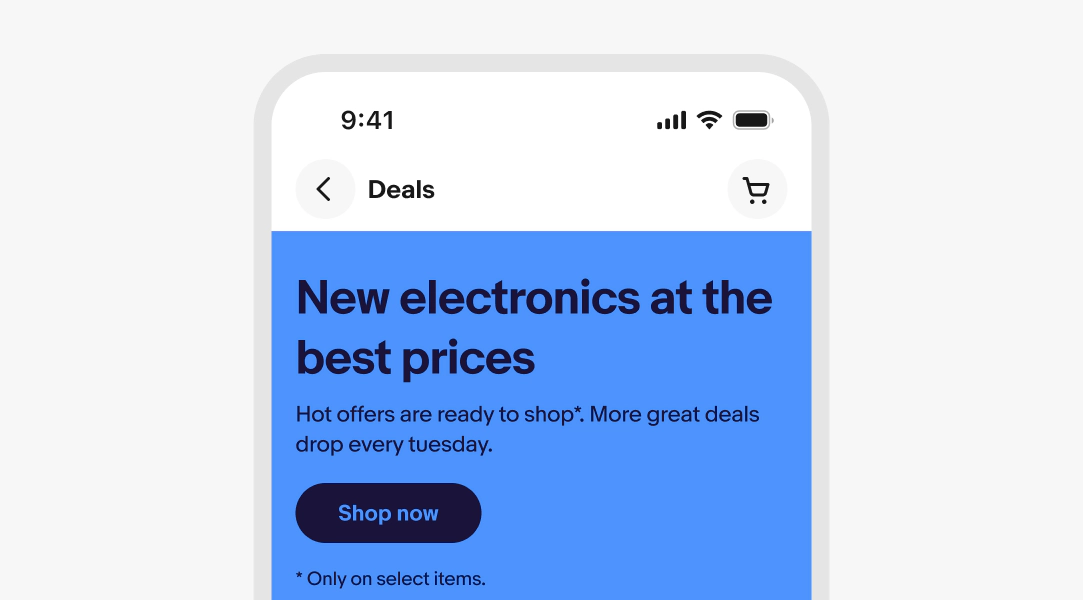
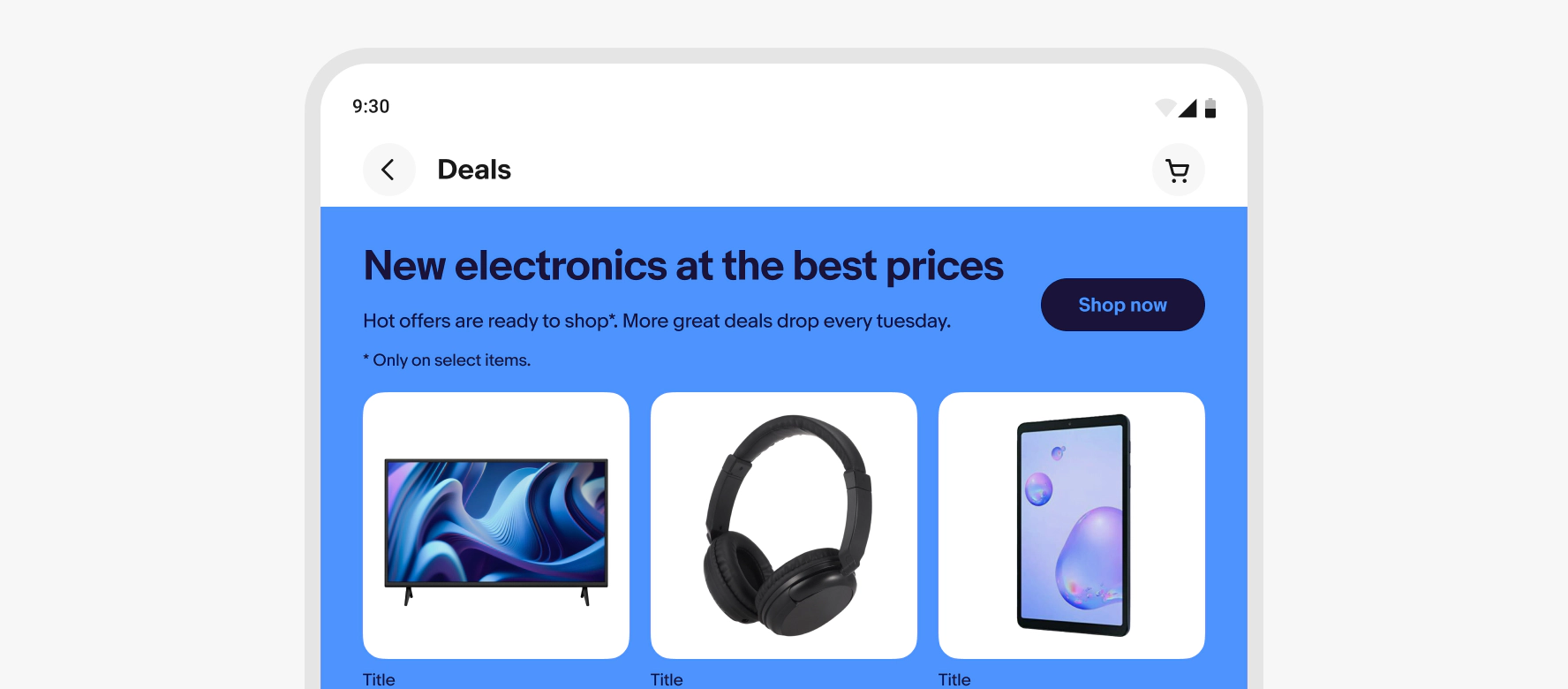
    A stylized mobile screen with a top navigation bar titled “deals” with tabs and a marketing banner below.
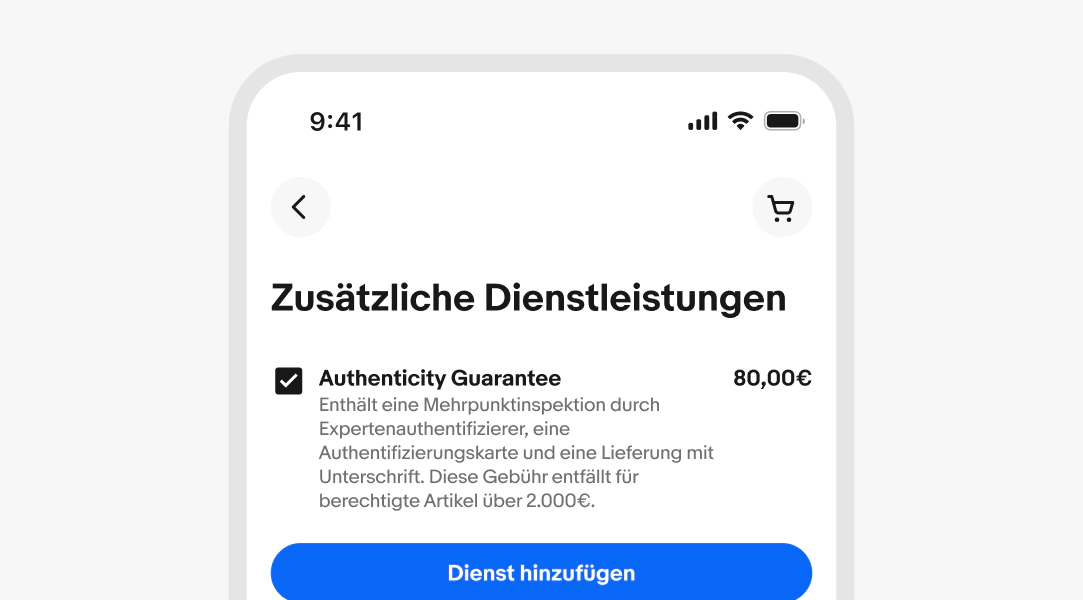
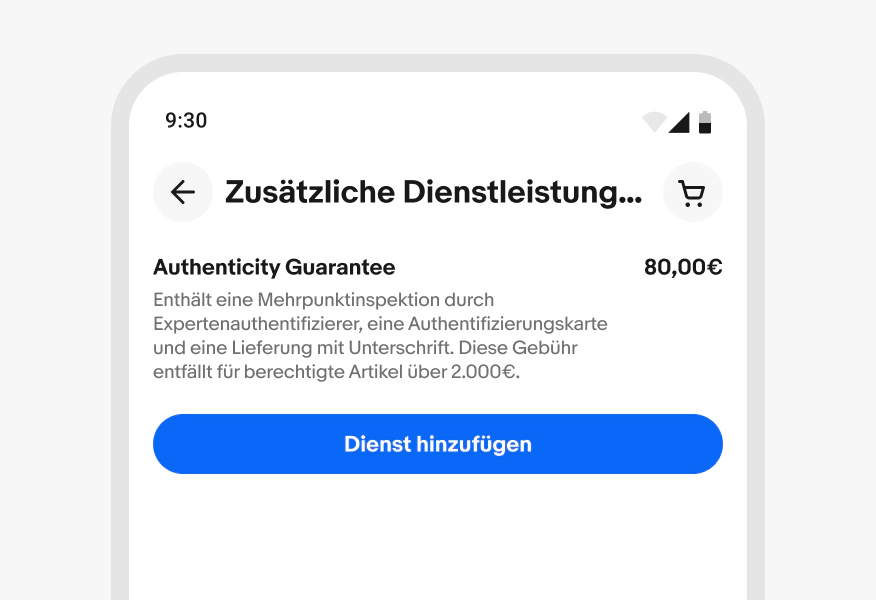
    A stylized mobile screen with a top navigation bar with a long German title.
    A stylized mobile screen with a top navigation bar with no title.
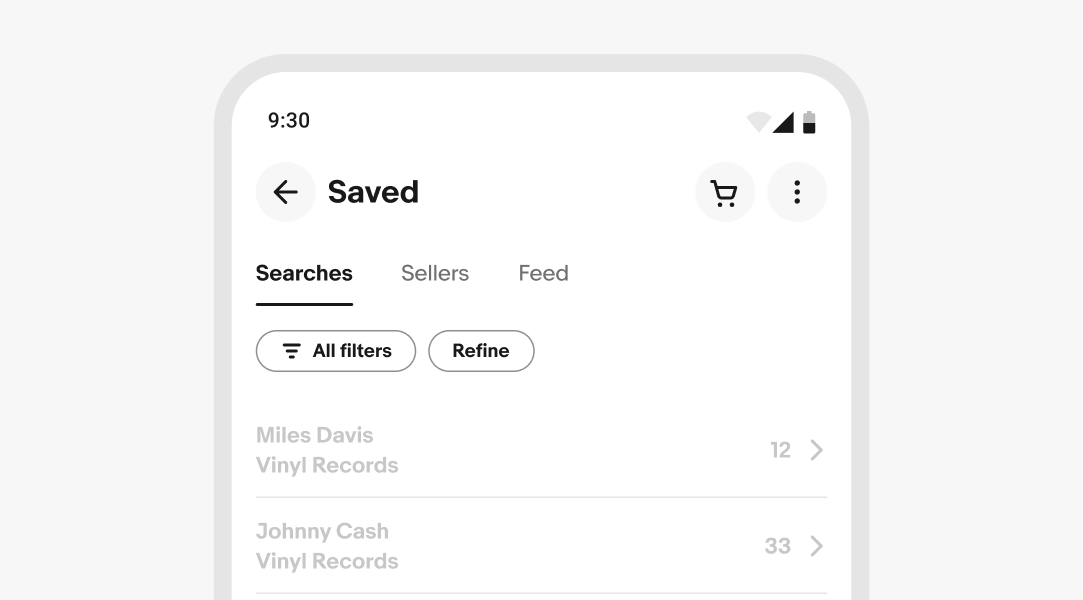
    A stylized mobile screen with a top navigation bar titled “Saved” with tabs and page content.
    A stylized mobile screen without a top navigation bar.
    A stylized mobile screen with an overlayed navigation bar.
    A stylized mobile screen with a top navigation bar titled “deals” with tabs and a marketing banner below.
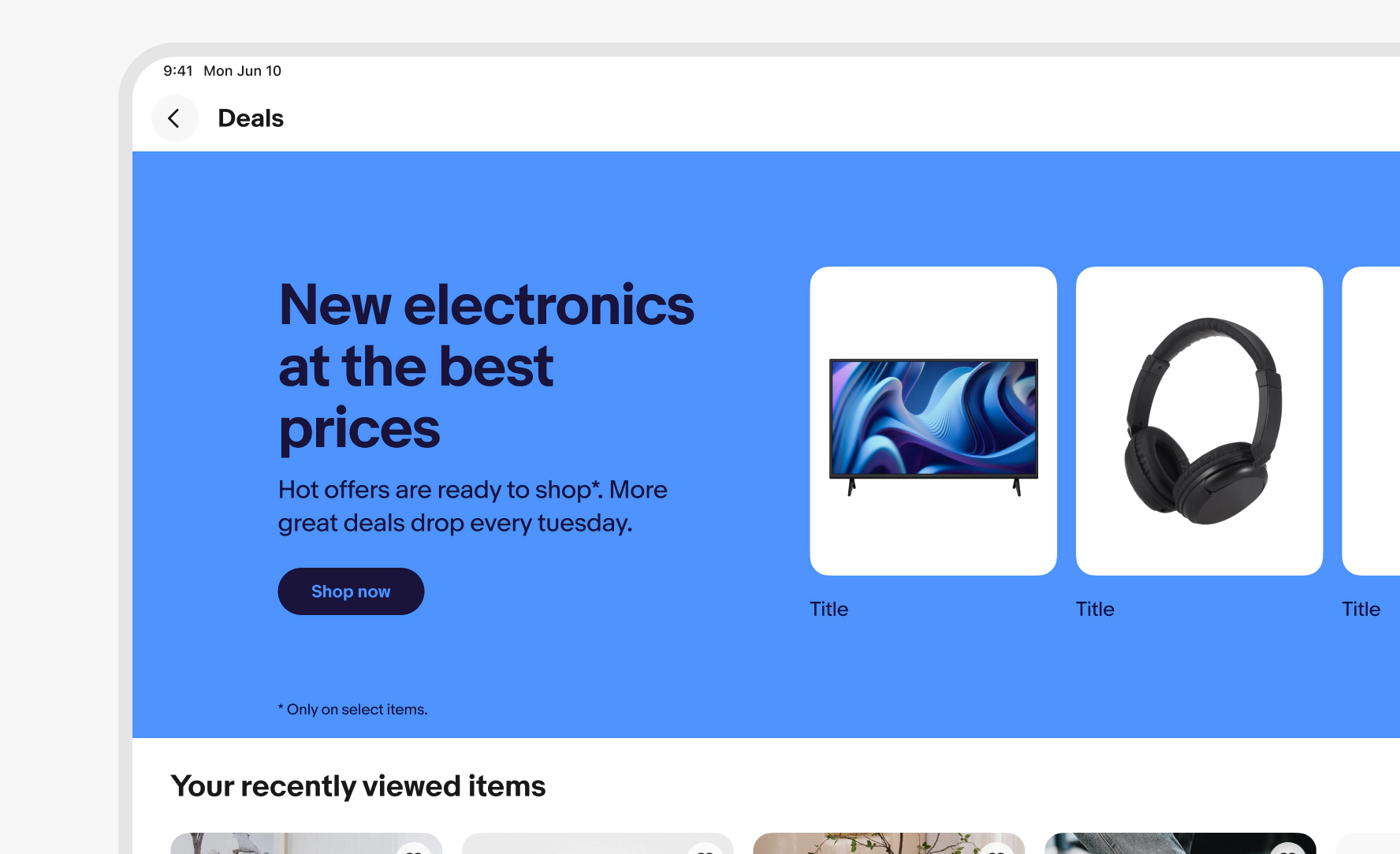
    A stylized tablet screen with a top navigation bar titled “deals” with tabs and a marketing banner below.
    A stylized large screen with a top navigation bar titled “deals” with tabs and a marketing banner below.
    Spec for a top navigation bar. The padding on the left and right is 16px, top and bottom is 8px, in-between elements is 8px.
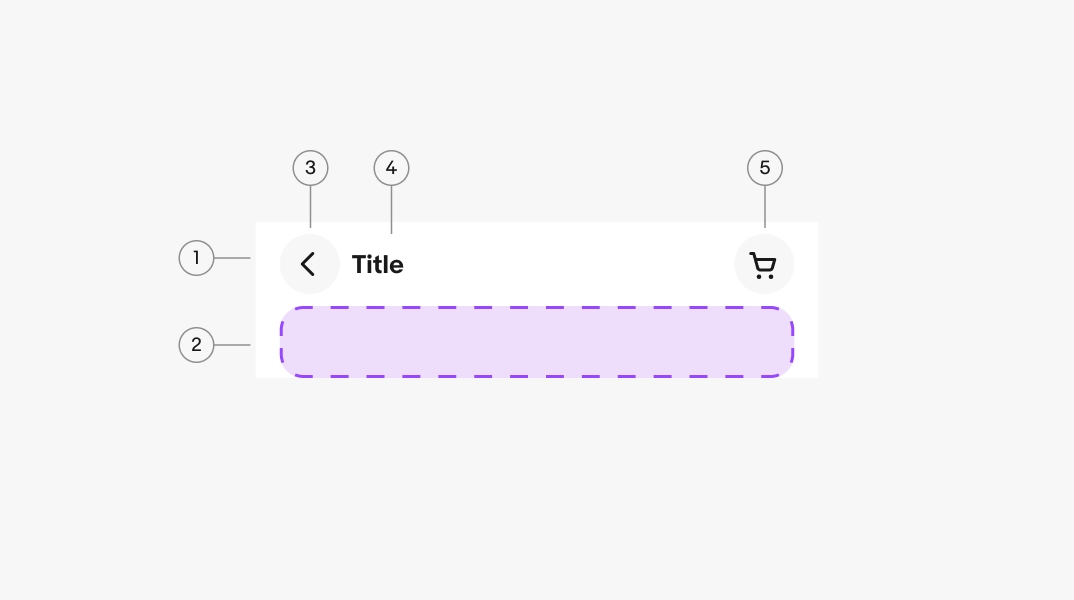
    "A top navigation diagram displaying anatomy."
    1. Primary toolbar
    2. Secondary toolbar
    3. Leading button
    4. Content area
    5. Trailing buttons

    Title length

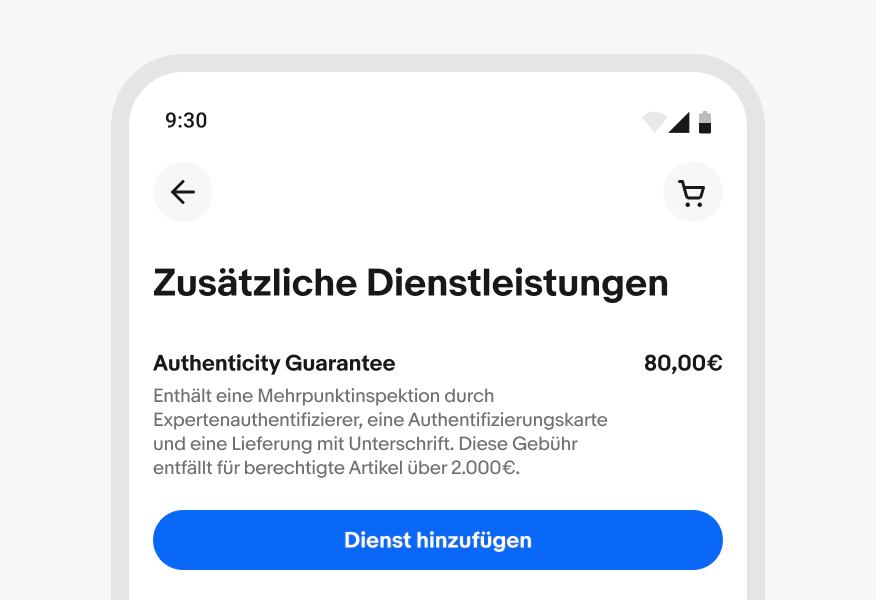
    Do use a large navigation bar when the title is long and would lead to wrapping.

    A stylized mobile screen with a top navigation bar with a long German title.

    Don’t use the smaller navigation bar if the title is likely to truncate.

    A stylized mobile screen with a top navigation bar with a long German title that is truncated.

    Trailing button style

    Do use icon buttons as trailing buttons.

    A stylized mobile screen with a top navigation bar titled “Address” with page content below.

    Don’t use a CTA or Link button as a trailing button. Place primary actions like “Done” or “Save” within the page content or in a sticky footer.

    A stylized mobile screen with a top navigation bar titled “Address” including a “save” link button and page content below.

    Amount of buttons

    Do use icon buttons as trailing buttons.

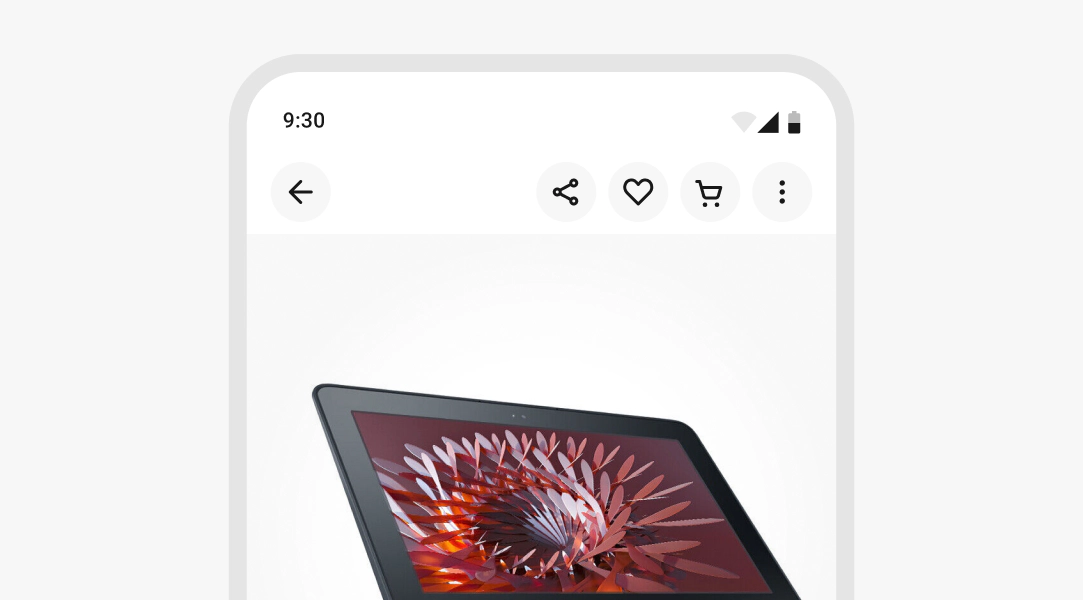
    A stylized mobile screen with a top navigation bar including three icon buttons

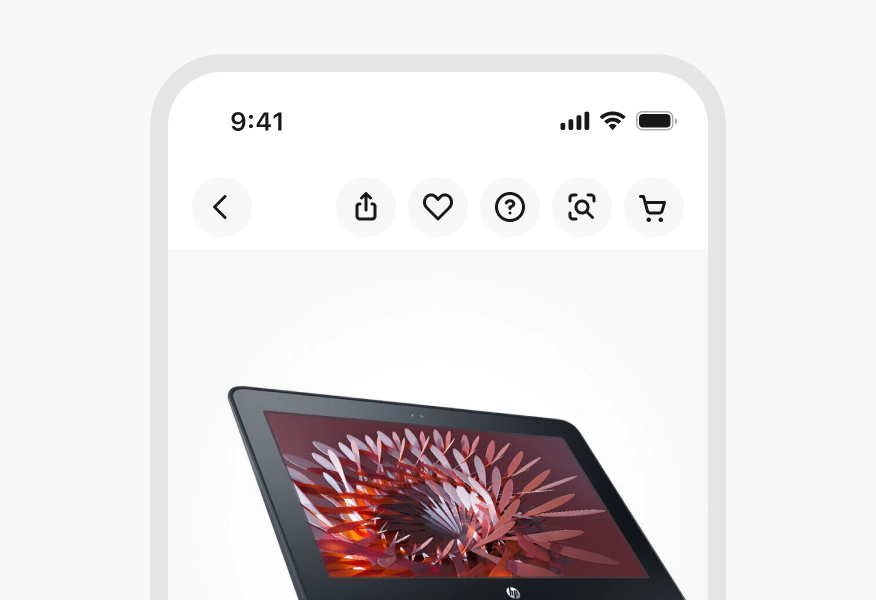
    Don’t use a CTA or Link button as a trailing button. Place primary actions like “Done” or “Save” within the page content or a sticky footer.

    A stylized mobile screen with a top navigation bar including four icon buttons

    Size

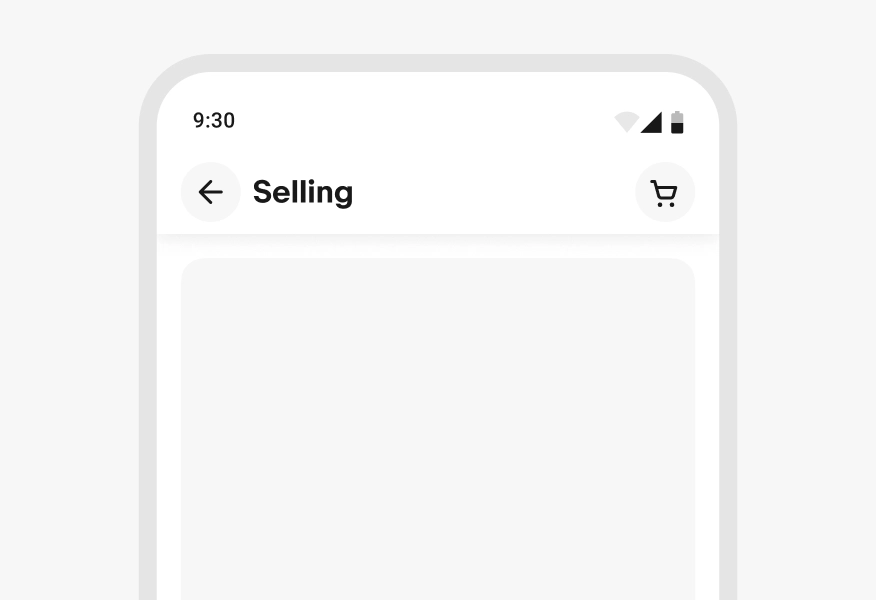
    Do maintain the size and padding within the top navigation bar.

    A stylized mobile screen with a top navigation bar titled “Selling”.

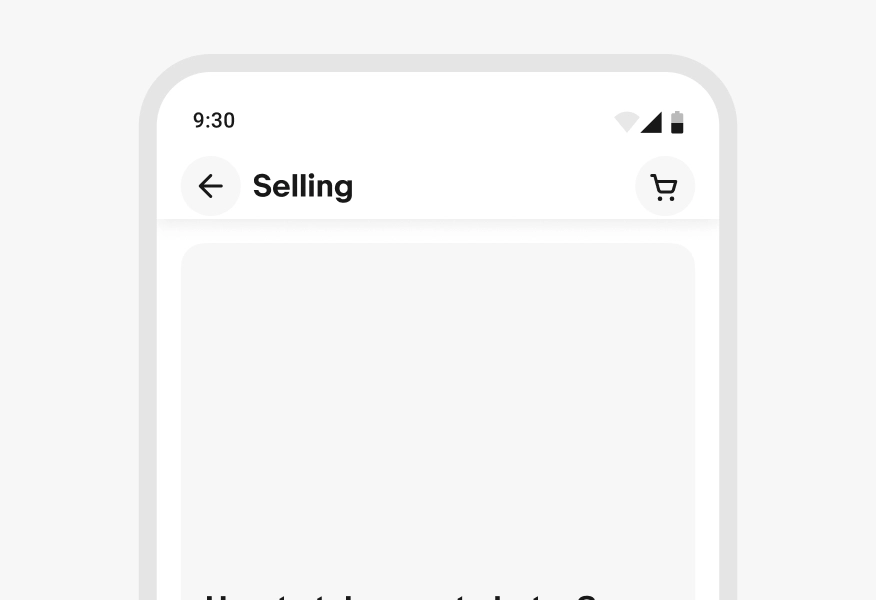
    Don’t alter the size or padding of the navigation bar.

    A stylized mobile screen with a top navigation bar titled “Selling” with decreased padding.