Sheets
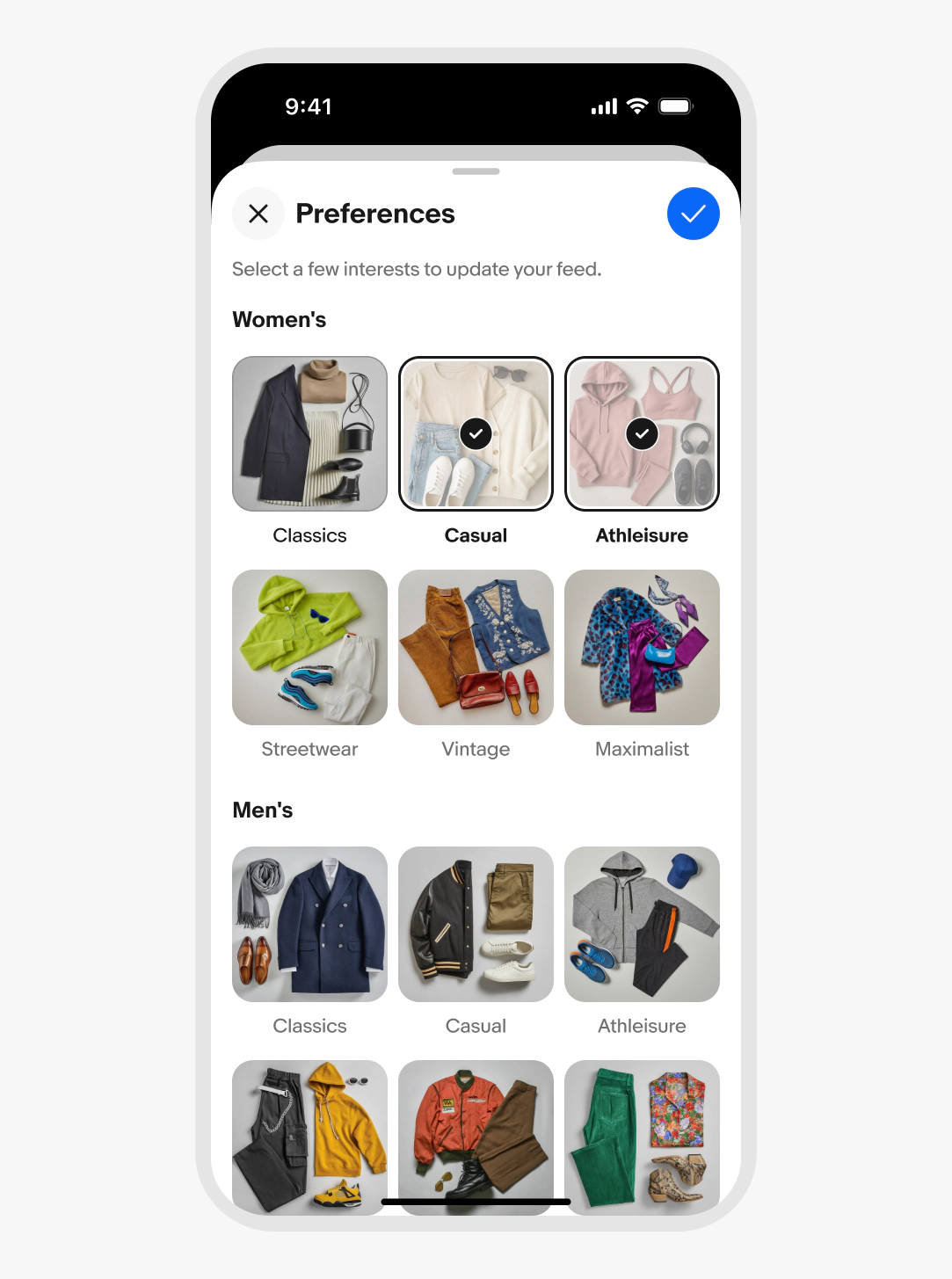
Sheets provide a consistent, adaptive, and accessible way to present content above the primary surface.

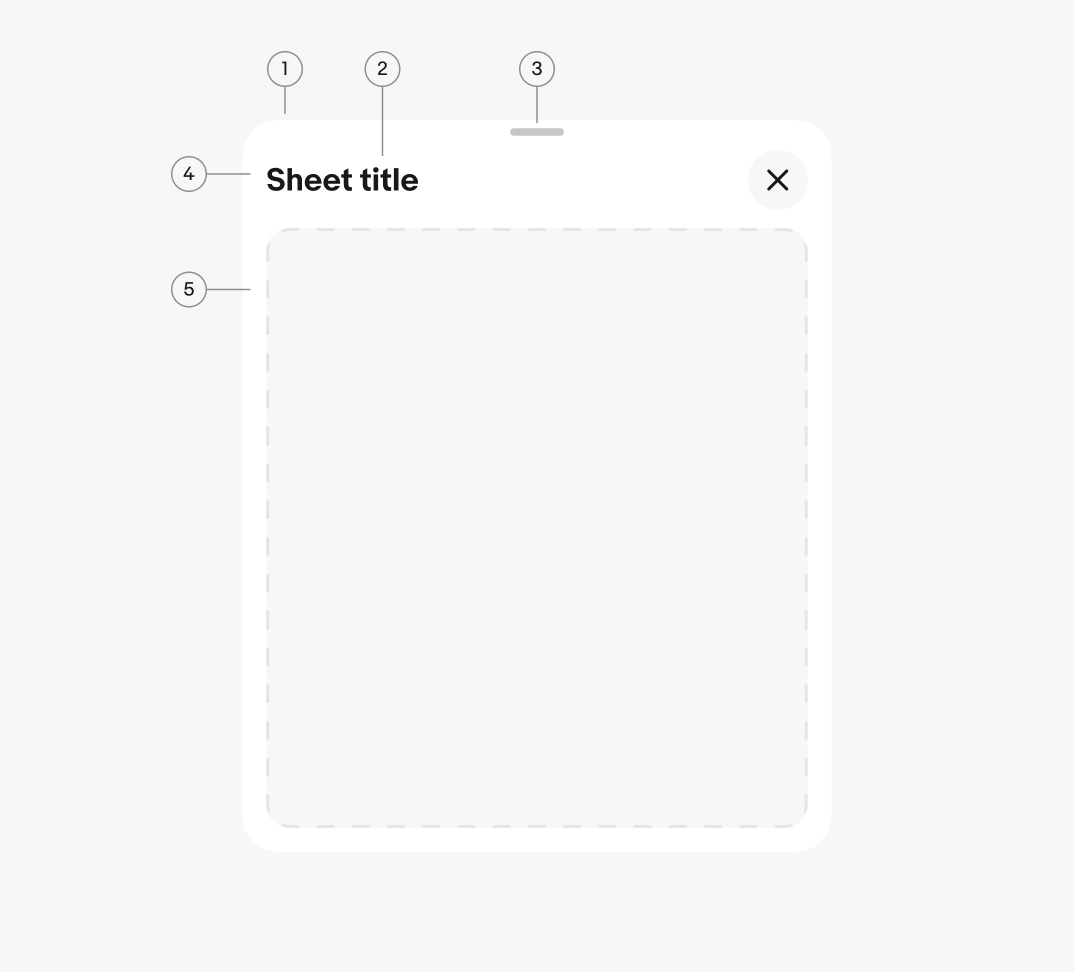
- Container
- Title (optional)
- Sheet handle (optional)
- Sheet toolbar (optional)
- Content area
Container
The container holds all sheet content and is the only required element. It manages the layering, transition, and interaction behaviors across sheet types.
Title
The title concisely tells users what the sheet is for, such as what they're selecting, configuring, or reviewing. Clearly name the task or content in the sheet.
- Use sentence case
- No ending punctuation
- Keep to 2–4 words
Sheet handle
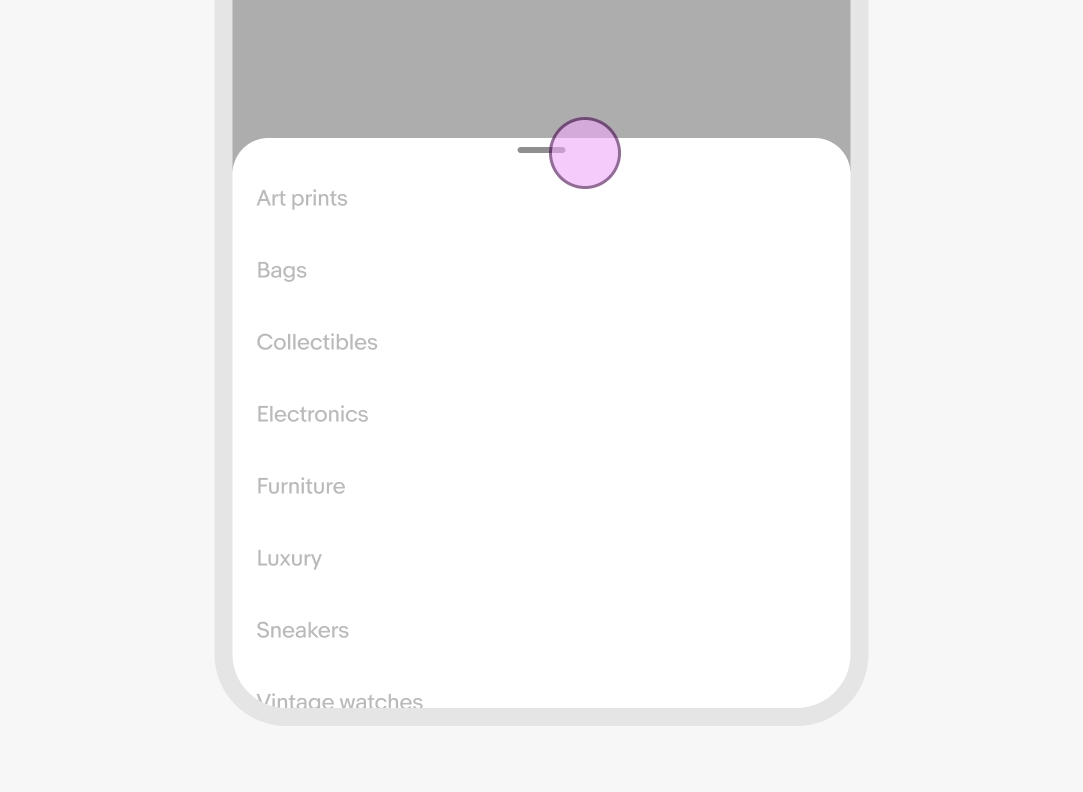
The sheet handle signals that the sheet can be dragged. Swiping upward expands sheets with overflowing content, and swiping downward dismisses the sheet.
Sheets with defined heights will rest at the closest height to the dragged container. Tapping the handle toggles the sheet between defined heights.
On iOS, the handle is always visible on focus and context sheets. On Android, it appears only on context sheets.
Sheet toolbar
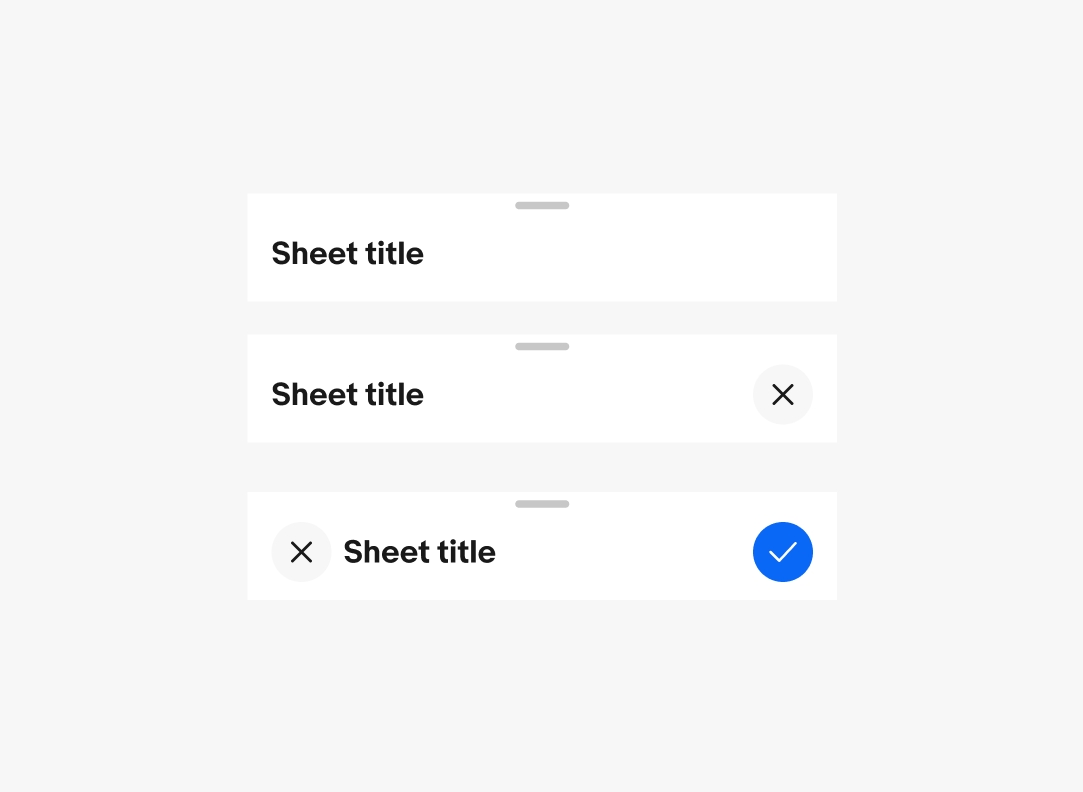
The sheet toolbar is built around the Top Navigation Bar and appears at the top of the sheet container. It contains the title, subtitle, close button, and an optional confirmation button.
If the only action is closing, the close button appears in the trailing position. If the sheet has a confirm or overflow action, the close button moves to the leading position and the other actions appear in the trailing position.
iOS uses icon buttons by default for all actions. Android uses a CTA button as the confirm action by default.
Height
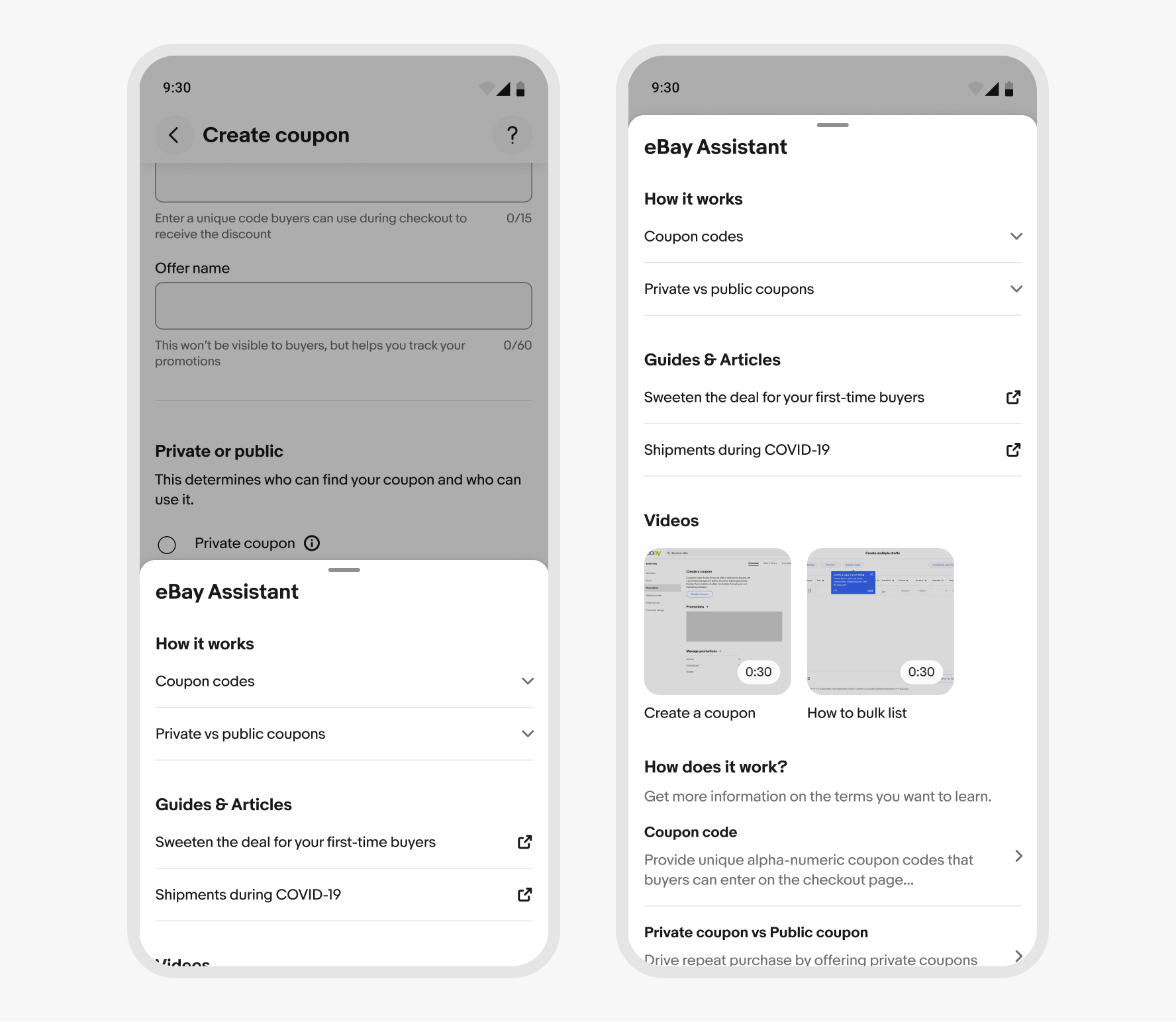
Context sheets open partially by default and expand to full height as the content is scrolled. The content area scroll begins when the sheet reaches full height.
Focus sheets are always full height on small screens.
Scrim
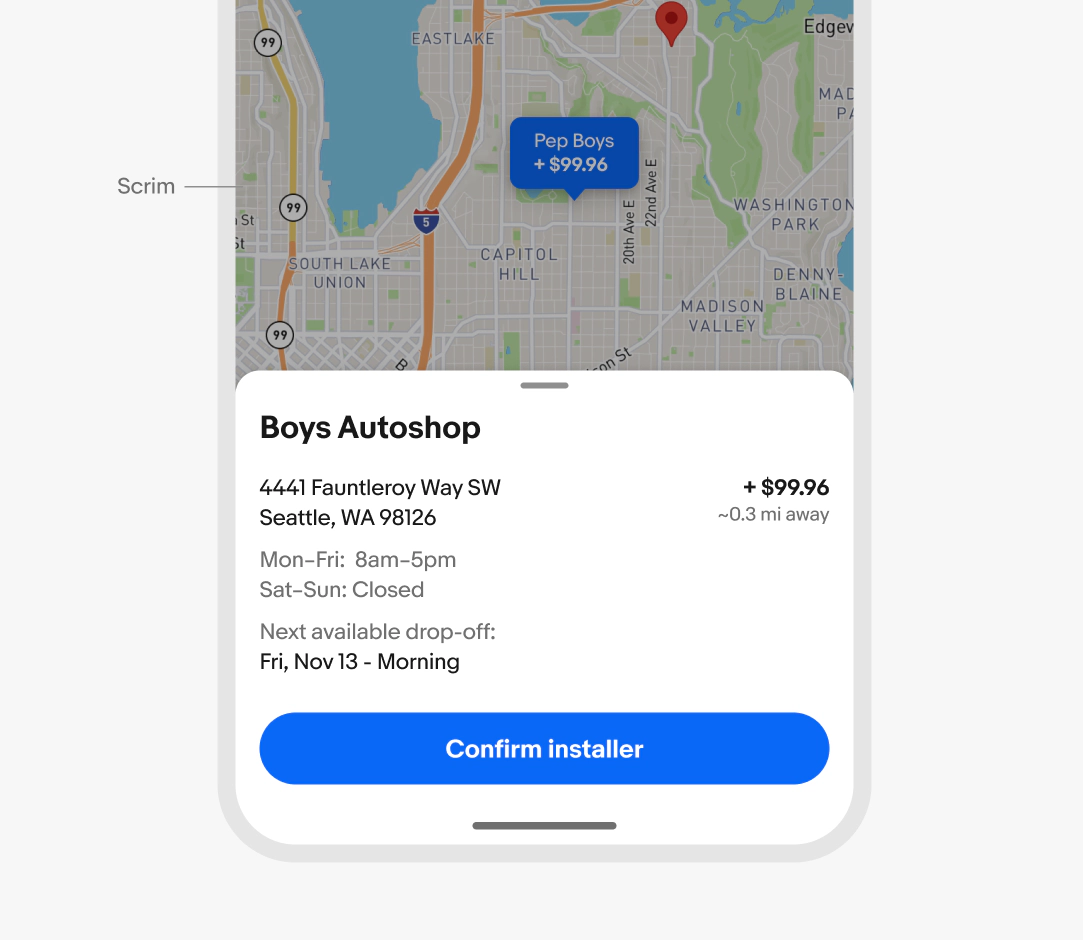
Sheets use a scrim to darken and block interaction with the primary page content, focusing users on the sheet’s task or information.
Toolbar visibility
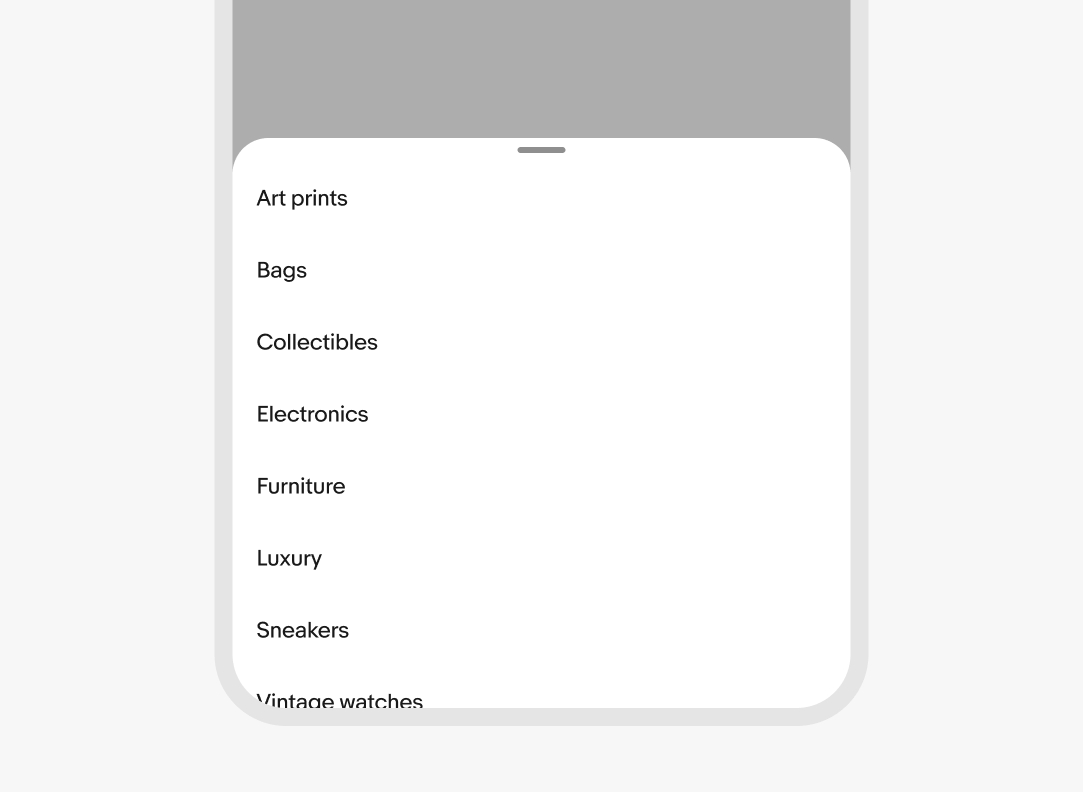
The sheet toolbar can be hidden for quick, simple decisions, like selecting a value from a list or when using a hero image at the top of the sheet. When hiding the toolbar, an accessible title must still be provided for screen readers and TalkBack services.
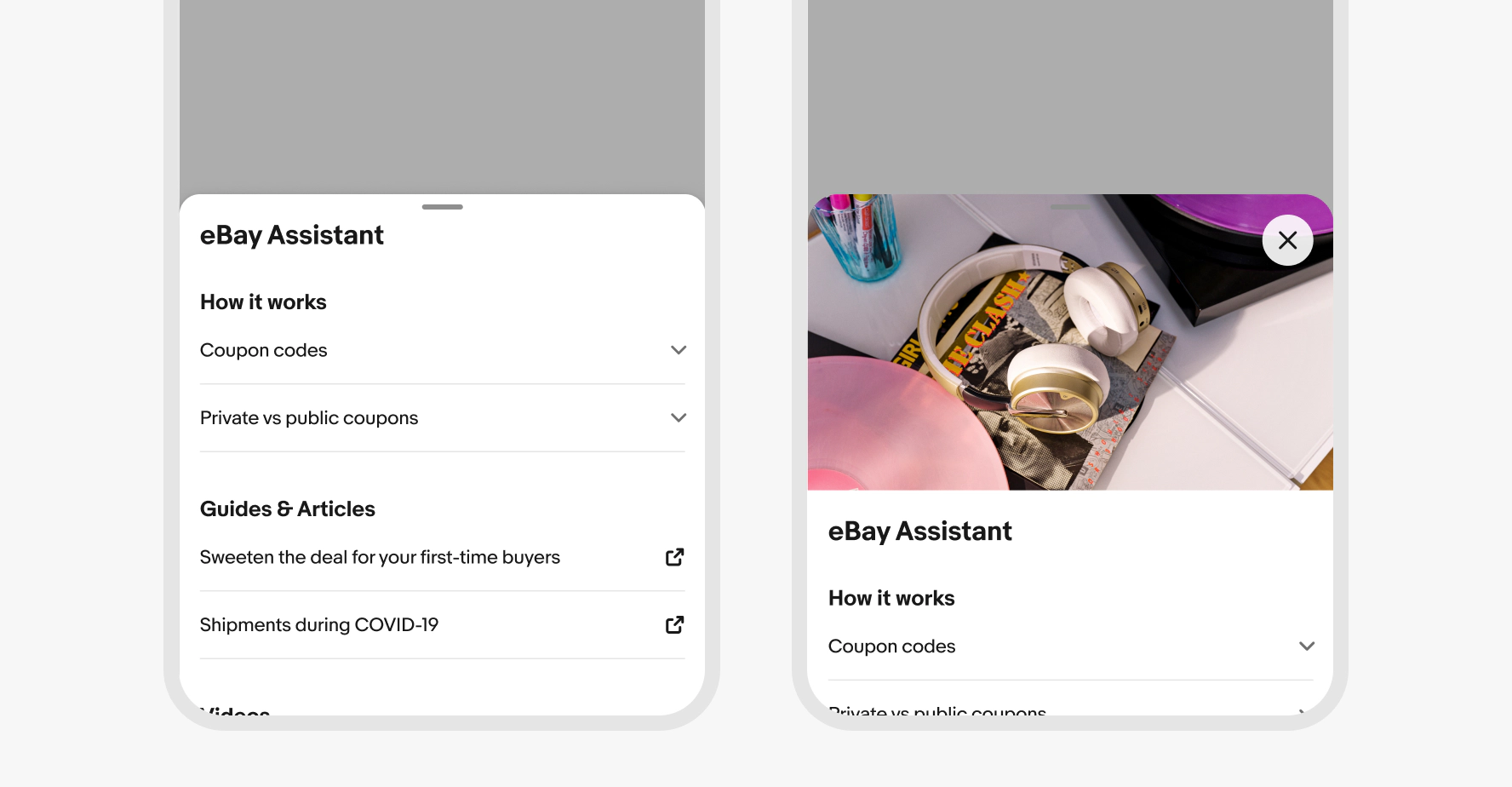
Interactive dismiss
Interactive dismiss is enabled by default, allowing the sheet to be dismissed using a downward swiping gesture.
If selections within the sheet don’t automatically apply, dismissing via swiping down is the same as canceling or closing the sheet.
Interactive dismiss can be disabled when the sheet contains decisions users may want saved. The sheet presents a confirmation dialog when attempting to drag the sheet away.
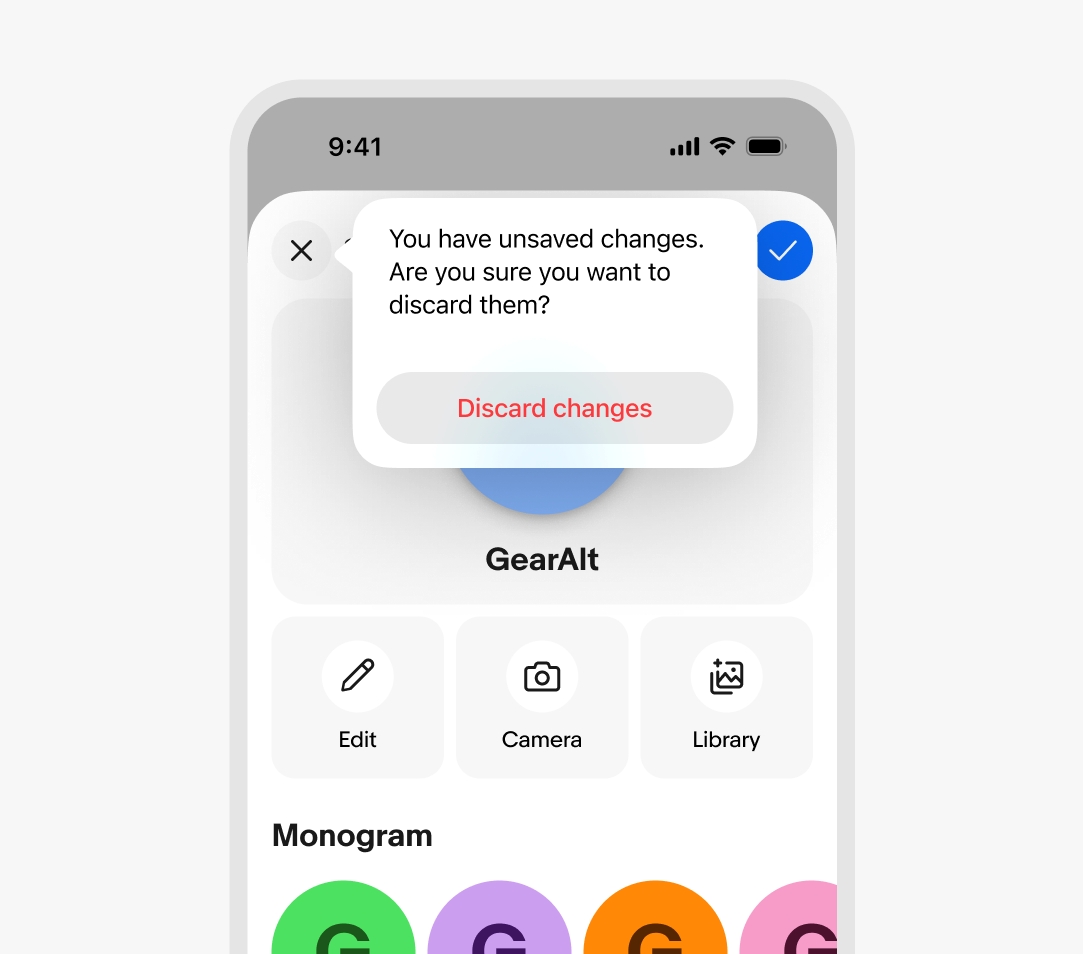
Context sheet
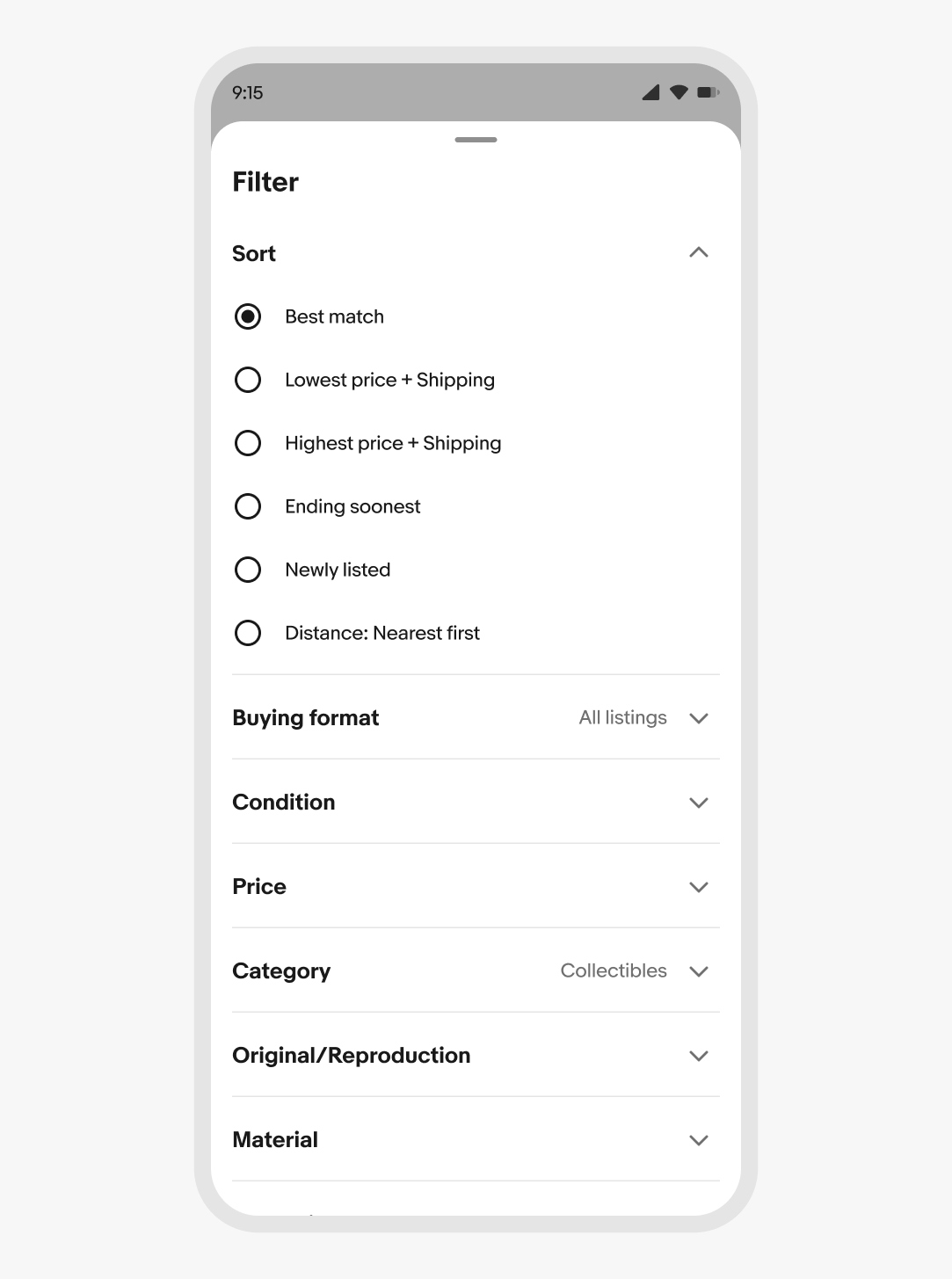
Context sheets are flexible, medium-attention surfaces for displaying relevant information above the primary surface.
Examples
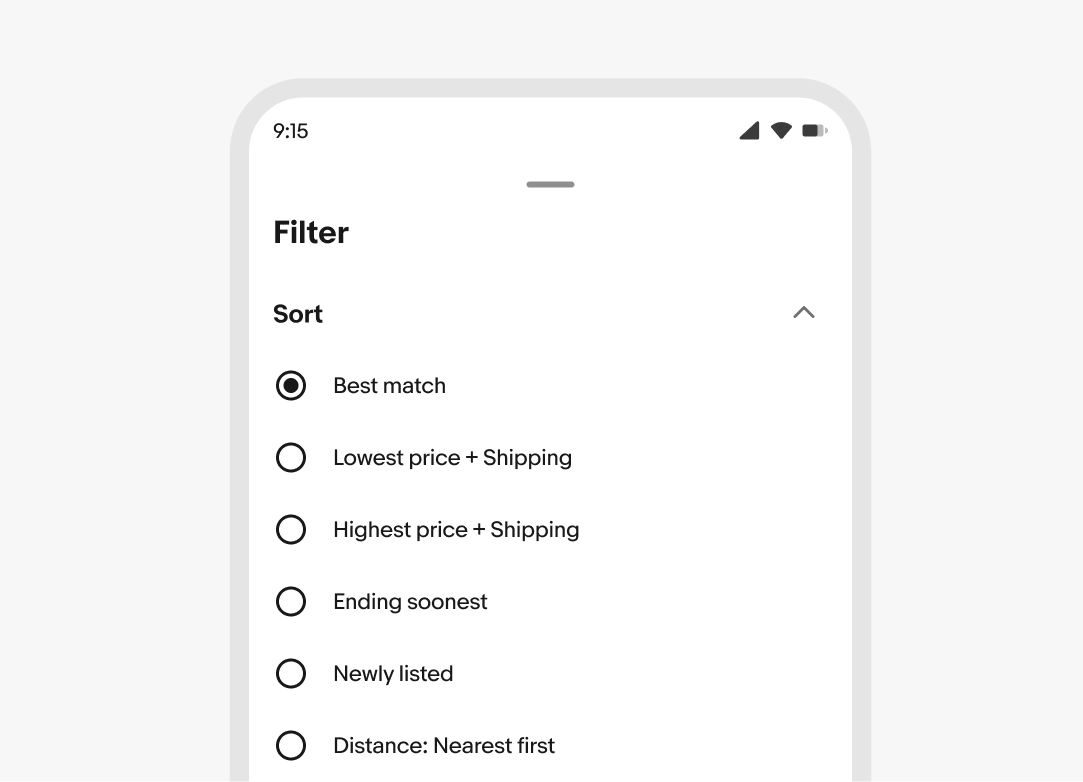
- Filtering or refining a search or browse experience
- Editing secondary settings that influence the main view
- Viewing or editing a listing preview from an elevated surface
Focus sheet
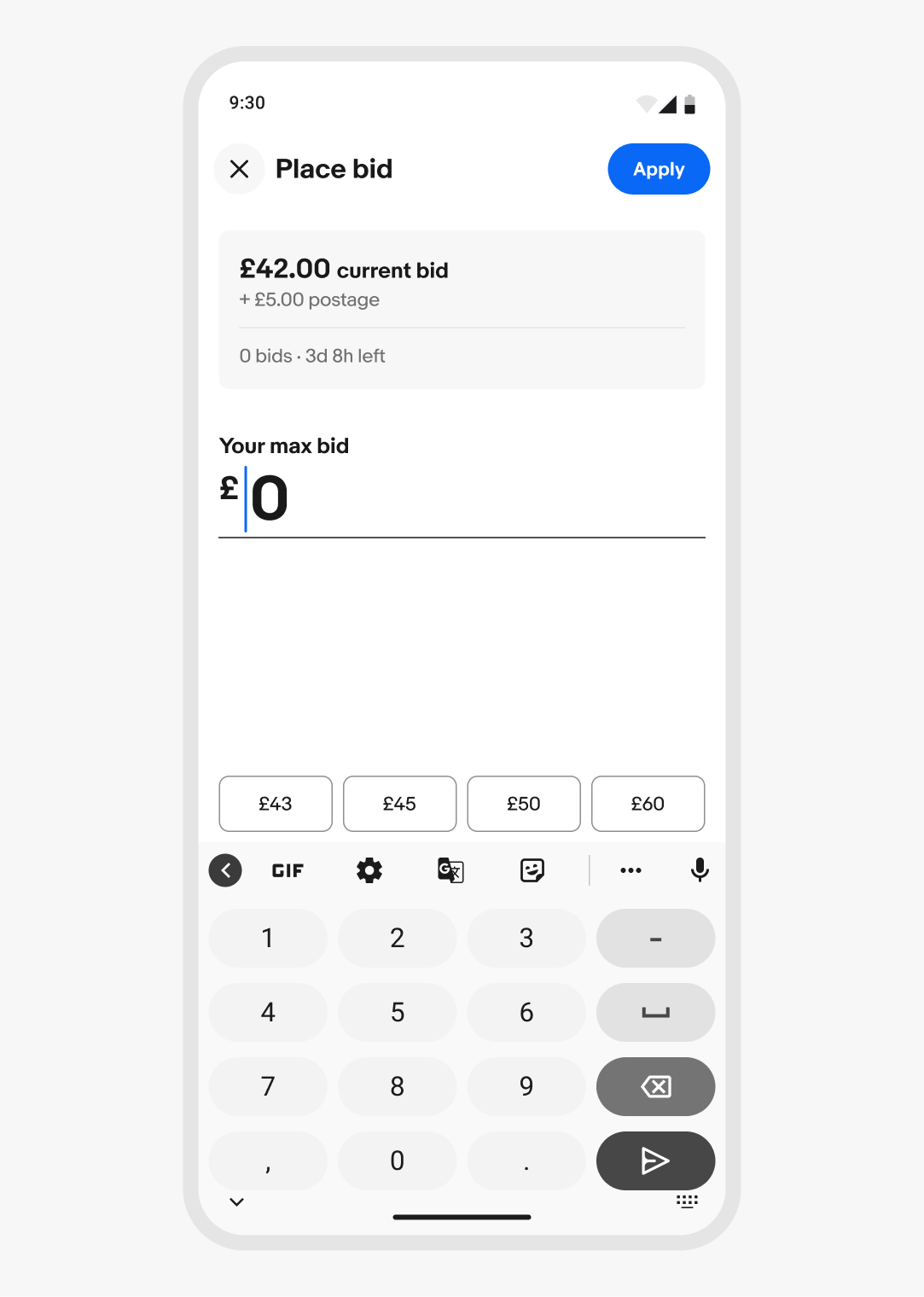
Focus sheets are blocking, scoped surfaces for contained interactions related to the primary surface.
Examples
- Completing a form with many fields, like updating payment details
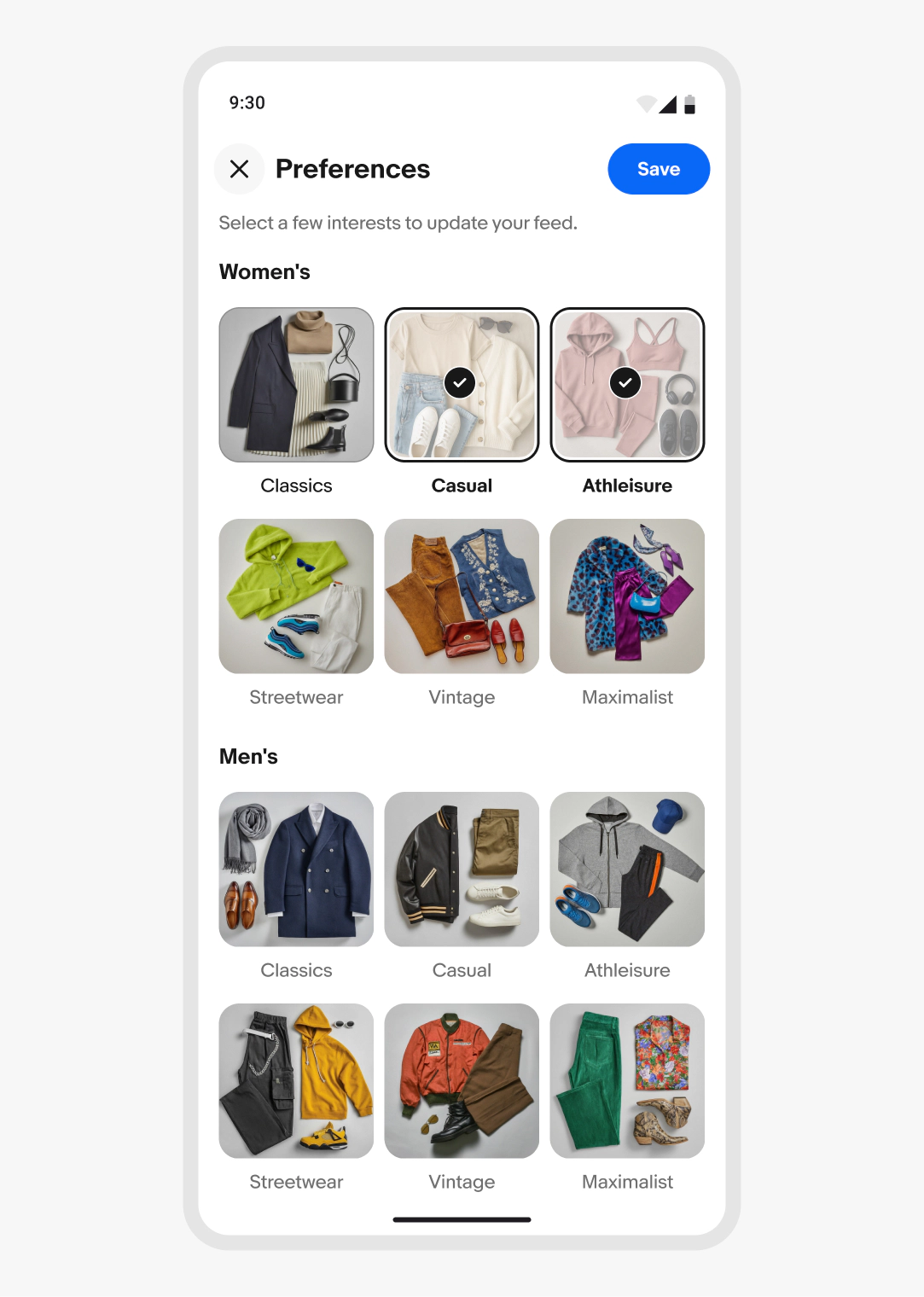
- Making multiple supplemental decisions, like adjusting feed preferences
Android
Sheets on Android leverage presentation behaviors from the system. The close button is only visible in Context sheets when the native TalkBack accessibility feature is enabled. Focus sheets always have the leading close button.
Avoid placing a back button in the sheet header—Android devices use the hardware back or predictive back gesture actions.
iOS
Sheets on iOS leverage presentation behavior from the native formSheet and pageSheet elements.