Graphs
Our graphs provide beautiful, simple, and accessible ways to understand sets of data.
Keep it simple
Progressive disclosure is key—ensure you are using data visualization as a tool to aid in understanding, not to overwhelm users with too much information all at once.
Tell a story
Focus on what you want to communicate and who you’re communicating to. Understanding data is much easier when there is a human narrative. Think about how you would tell the story in a sentence.
Scale thoughtfully
Our charts scale seamlessly for all screen sizes and users. Use designated colors, interactive states, and scaling behaviors to ensure they are simple and accessible in all contexts.
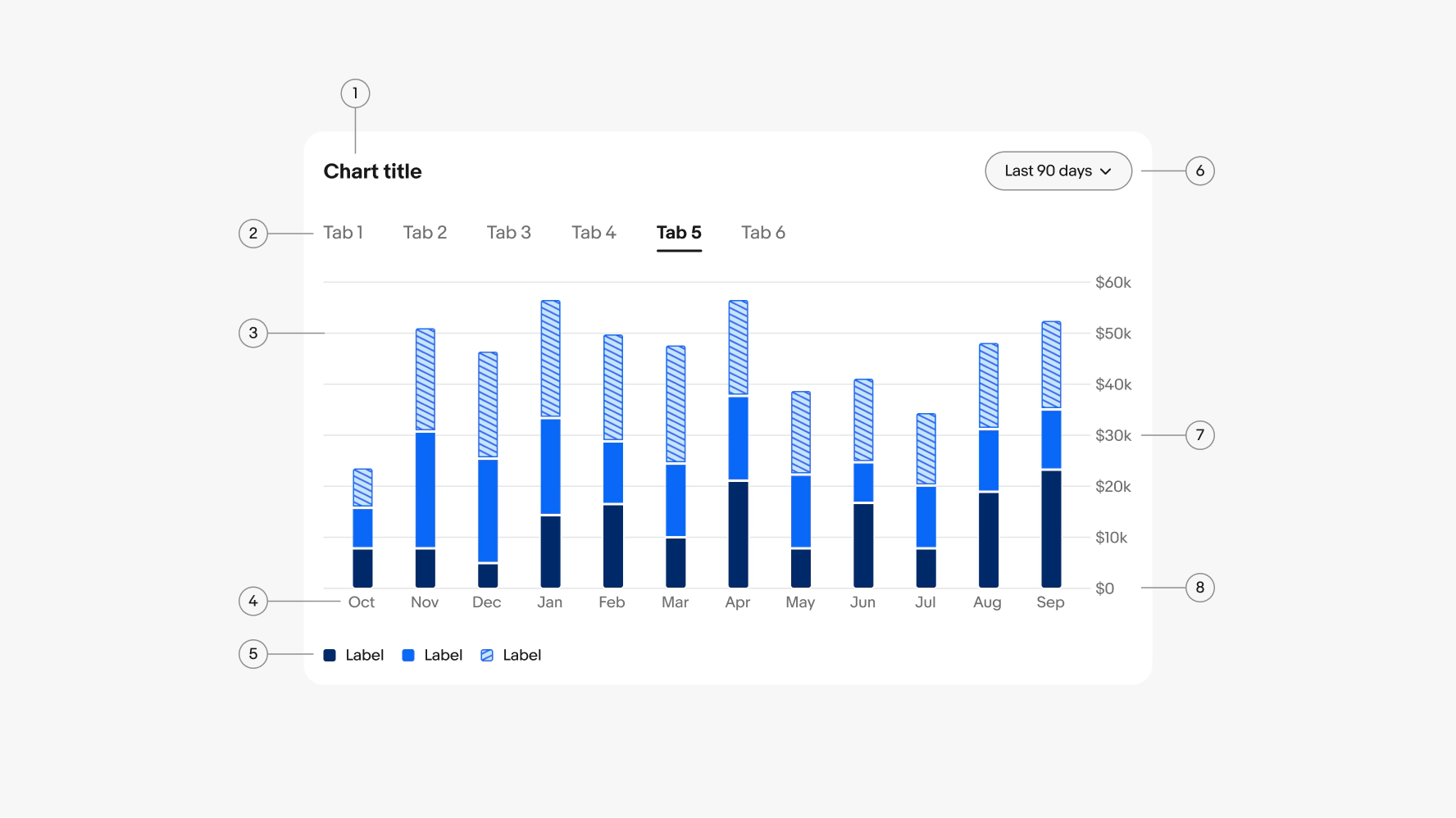
- Title
- Tab set
- Scaffolding
- X-axis
- Key
- Controls
- Y-axis
- Baseline

Stacked bar chart
Used to compare multiple part-to-whole relationships or ranking a single data set.

Side-by-side bar chart
Used to compare data across categories or two or more criteria.

Stacked area chart
Used to visualize a total over time and how each category contributes to the whole.

Line graph
Used to track changes over time for single or multiple data sets. Line graphs are better at showing smaller changes and/or longer time periods than bar charts.

Progress bar
Used to show progress toward a single goal or total. Can be either linear or circular.

Donut chart
Used to show the breakdown of a single part-to-whole relationship within a total.
Single data sets
We use our primary blue when visualizing a single value, such as progress bars, or a single data set, like line graphs, bar charts, or area charts.

Part-to-whole data sets
We use shades of blue, and teal when needed, to represent part-to-whole relationships. This approach keeps the focus on a single, neutral color family, avoiding the use of hues like green and red that may carry specific meanings in other contexts.

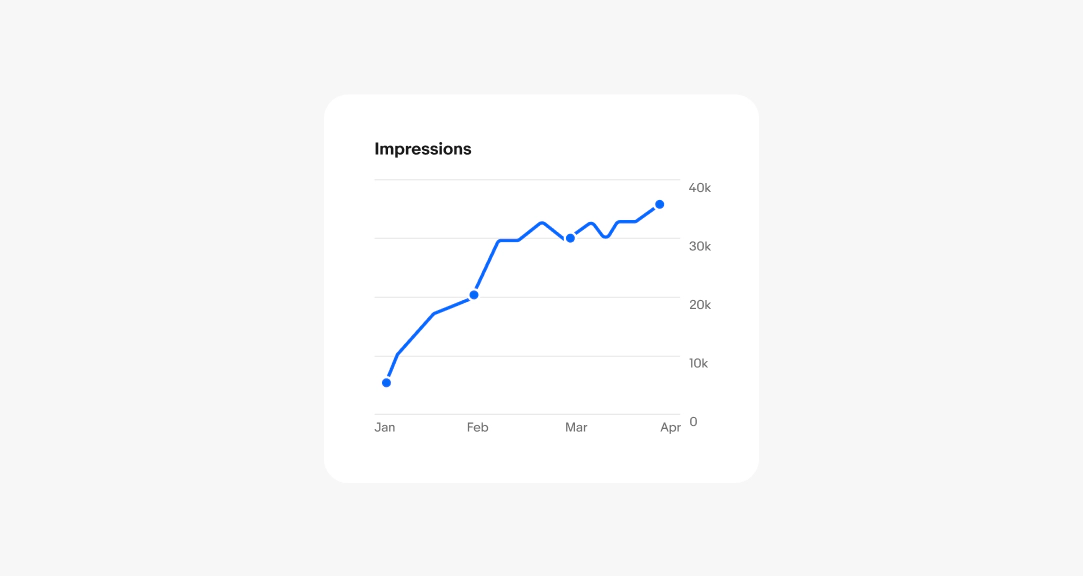
Title
Required. Titles name the data being visualized. Use exacting language.
- Use sentence case
- No ending punctuation
- Aim for 1-2 words
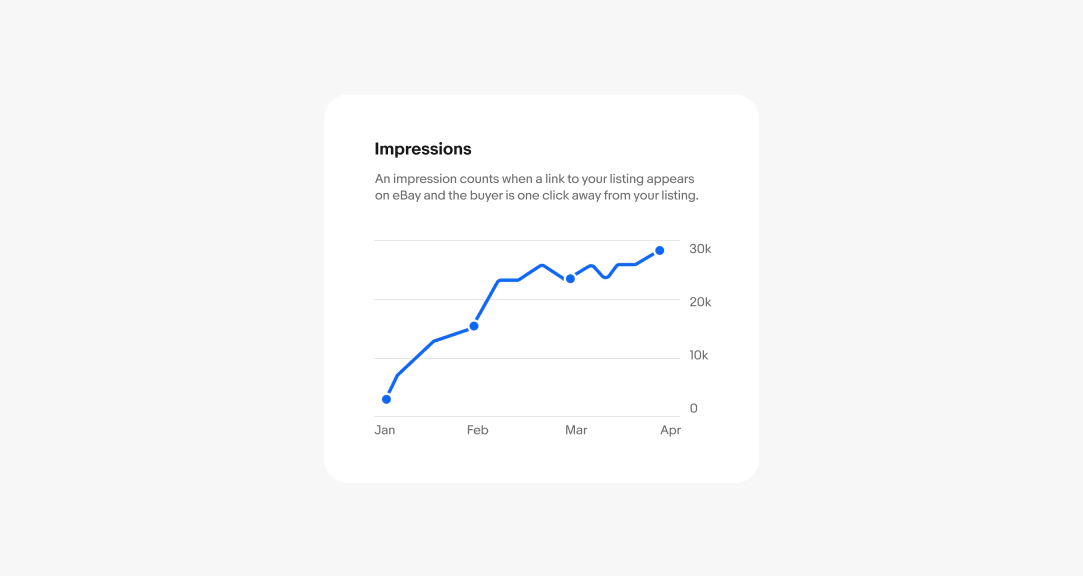
Subtitle
Optional. Use a subtitle when the title alone isn’t enough to understand the chart. Add context that the title is missing. Don’t restate the title.
- Use sentence case
- No ending punctuation
- Aim for 1-2 lines
Primary metric
Optional. Use when one number is the main takeaway and the chart exists to support it. Don't use when there’s multiple equally important values.
- Use sentence case
- No ending punctuation
- For money, see formatting numerals
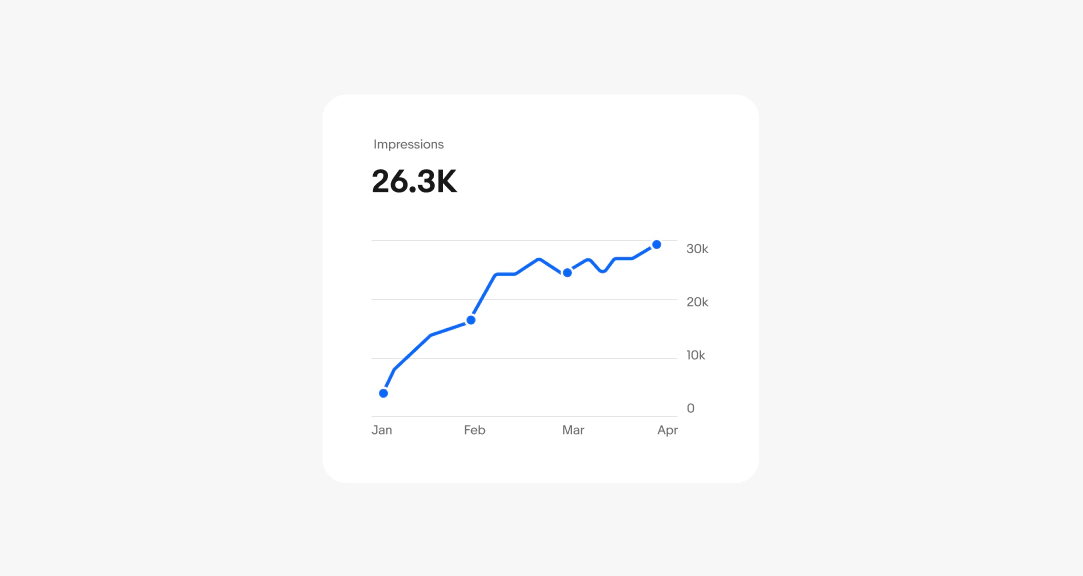
Controls
Controls are used to change the type of data shown on a graph. They can be tabs, quick filters or drop-downs that are either left aligned or right aligned. Use clear, concise labels to name each option.
- Use sentence case
- No punctuation
- Use parallel structure across options

Tabs

Quick filters

Dropdown
Axis
The X and Y axes help users compare data points consistently across graphs. Choose intervals that avoid overcrowding. For example, if the chart covers a full year of daily data, don't display all 365 days on the X-axis.
Axis labels
Leave at least 16px between labels and include key anchor points. Start the Y-axis at 0 for accurate proportions, and mark significant time points on the X-axis, like financial quarters or days of the week.
- Use sentence case
- No ending punctuation
- For time periods, see formatting time
- For money, see formatting numerals
Tooltips
Tooltips reveal precise data values when users hover over or interact with the chart, letting them explore specific data points. The title of the tooltip names the date or time the datapoint is from.
- Use sentence case
- No ending punctuation
Learn more about writing tooltips.
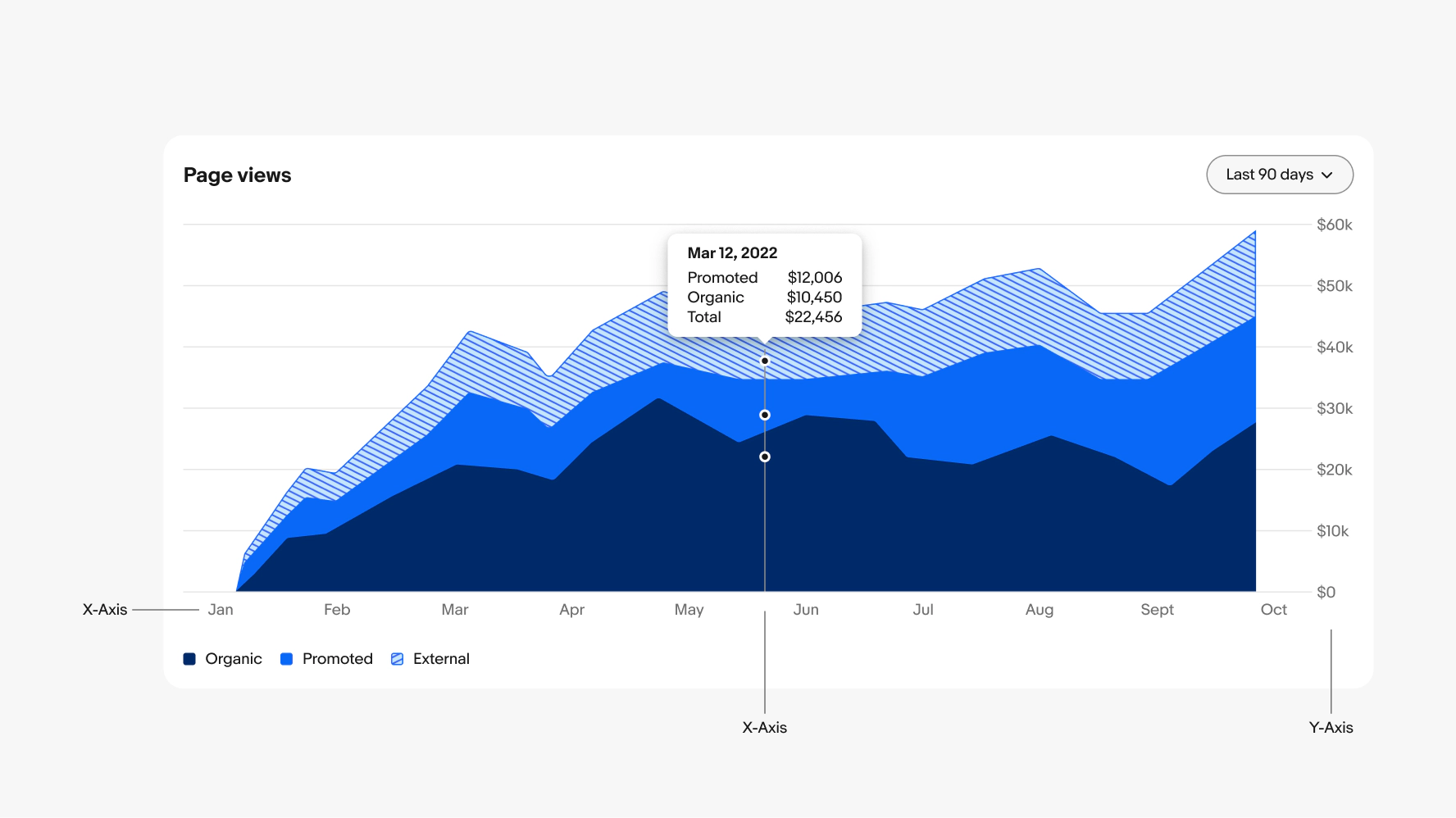
Interactivity is crucial in maintaining our principles of simplicity and progressive disclosure. Graphs and charts should be simple enough to be understood at-a-glance. Progressive disclosure allows users to easily find the details they need by interacting with specific parts of the graph.
Mouse devices
On web, users can hover or click a specific point in time to see more details. This will open a tooltip above the selected time period and all other shapes on the graph fade to 30% opacity.

Touch devices
On mobile devices, users can interact with graphs through tap and long press gestures. A tap reveals the tooltip for a specific time period, and a second tap dismisses it. Alternatively, a long press reveals the tooltip, allowing users to scroll left or right while pressing to view each time period consecutively.

Tool tips
Make sure the ordering of data sets in the tooltip reflects the order of the segments on the graph from top to bottom. For example, the top segment should be the top value in the flyout, the second value should be the second segment down, etc. The key under the graph should be in the opposite order since the key represents building the segments from the bottom up to the top.

Small screen
The size and number of bars in a bar chart can affect its clarity and meaning when the chart becomes too complex. If bars are narrower than 12px with less than 8px of padding, the chart starts to resemble an area chart, making the bars difficult to read. Aim to keep bars between 12px and 16px wide, with at least 8px of padding between them for optimal readability.

16px bars with 40px padding

16px bars with 32px padding

16px bars with 8px padding
Medium and Large screen
On medium and large screens, the increased real estate allows us to expand the X-axis to display more data in most graphs, often extending the time period and adding more bars in bar charts. However, if consistency in the time period across screen sizes is crucial for the user, you can maintain the same time period and instead adjust the bar width, spacing, and graph inset. On larger screens, bars can widen from 12px to 24px, with at least 8px of padding between them.

Maintain time frame
Increase bar width, padding, and inset.

Increase time frame
Increase number of bars, width, and padding.
Data viz color tokens
All of the colors we use in our data visualization patterns have been vetted for accessibility and fit into three categories: trends, charts, and line graphs. You can find the colors we use throughout this page in Color Tokens.

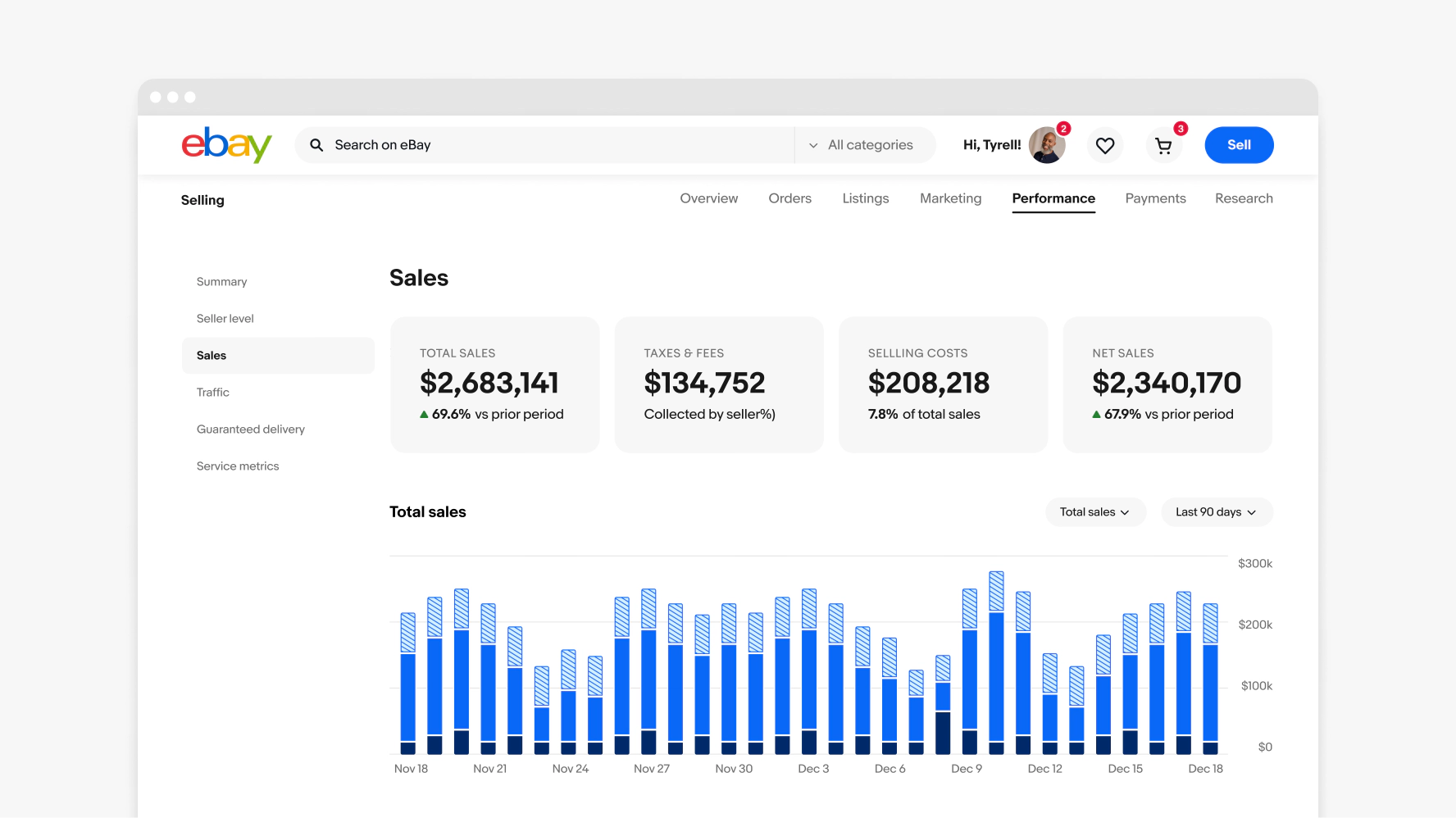
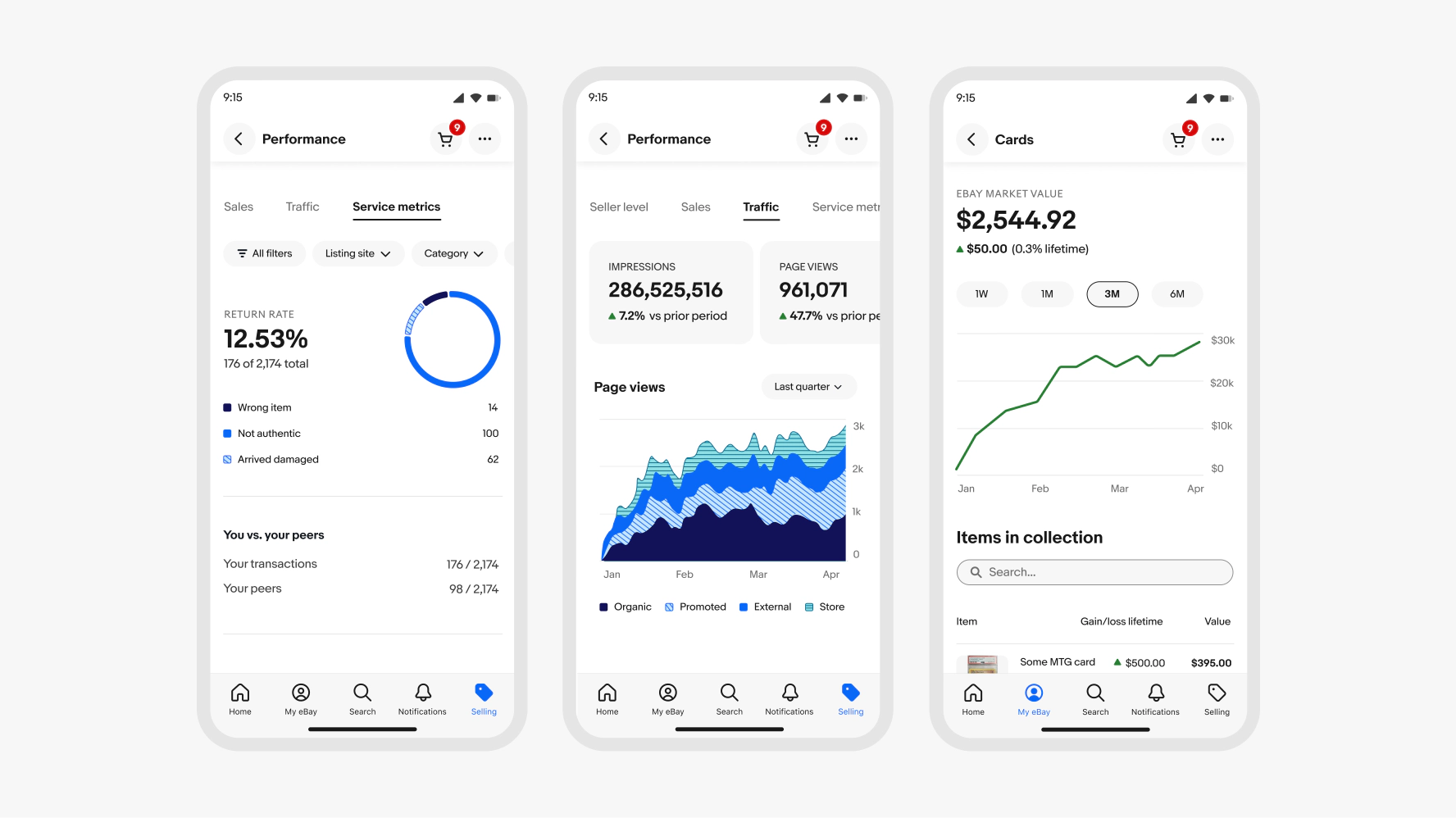
Axis
Do separate axis labels with at least 16px of padding.

Don’t place axis labels too closely together or angle the text. If necessary, show every other label or wrap labels onto 2 lines.

Shape
Do use 2px corner radii on outside corners of bar chart segments.

Don’t increase corner radii on bar charts. Rounded edges make the values harder to read and the bars harder to compare.

Density of bar charts
Do maintain between 12px and 24px wide bars with a minimum of 8px padding between them.

Don’t make bars smaller than 12px wide or decrease padding below 8px to show more data. Show less bars or use a different graph to achieve the density of data you are looking for.

Number of data sets
Do show a max of 3 data sets per graph by default.

Don’t show more than 3 data sets by default. A max of 5 data sets can be displayed if the user turns on more.

Interactivity
Do ensure interactive tooltips are aligned above or below all key shapes and data in the graph, even if they overlap the title, controls, or axis. Always include the value and label for each data set within the tooltip.

Don’t align interactive tooltips to the left or right where users fingers may cover important data on touch screens. And don’t rely on the order alone to express the meaning of values.

Graph color
Do use the color themes defined for each graph type and the ordering defined based on number of data sets.

Don’t use colors intended for one chart type in another, such as applying line graph colors in an area chart, and don't create new color themes for graphs that aren’t part of the system.
